How to Install Docker on Ubuntu 24.04
Abi hus

Docker has become an essential tool for developers and system administrators, enabling seamless containerization of applications to improve portability, scalability, and efficiency. As Ubuntu 24.04 gains popularity among users for its stability and advanced features, knowing how to install Docker on this latest version is crucial for leveraging container technology effectively. This guide provides a comprehensive walkthrough, ensuring you can set up Docker quickly and correctly on Ubuntu 24.04 using official repositories, which guarantees access to the latest updates and security patches.
Docker has become an essential tool for developers and system administrators, enabling seamless containerization of applications to improve portability, scalability, and efficiency. As Ubuntu 24.04 gains popularity among users for its stability and advanced features, knowing how to install Docker on this latest version is crucial for leveraging container technology effectively. This guide provides a comprehensive walkthrough, ensuring you can set up Docker quickly and correctly on Ubuntu 24.04 using official repositories, which guarantees access to the latest updates and security patches.
Installing Docker on Ubuntu 24.04 supports the use of containerd as the default container runtime, offering optimized performance and compatibility with modern container workloads. The process involves updating your system’s package index, installing the docker.io package from Ubuntu’s official repositories, and configuring your user permissions for smooth operation. Understanding these steps is vital for creating a secure and efficient environment for deploying containerized applications, whether for development, testing, or production environments.
By following this tutorial
Introduction to Docker and Ubuntu 24.04
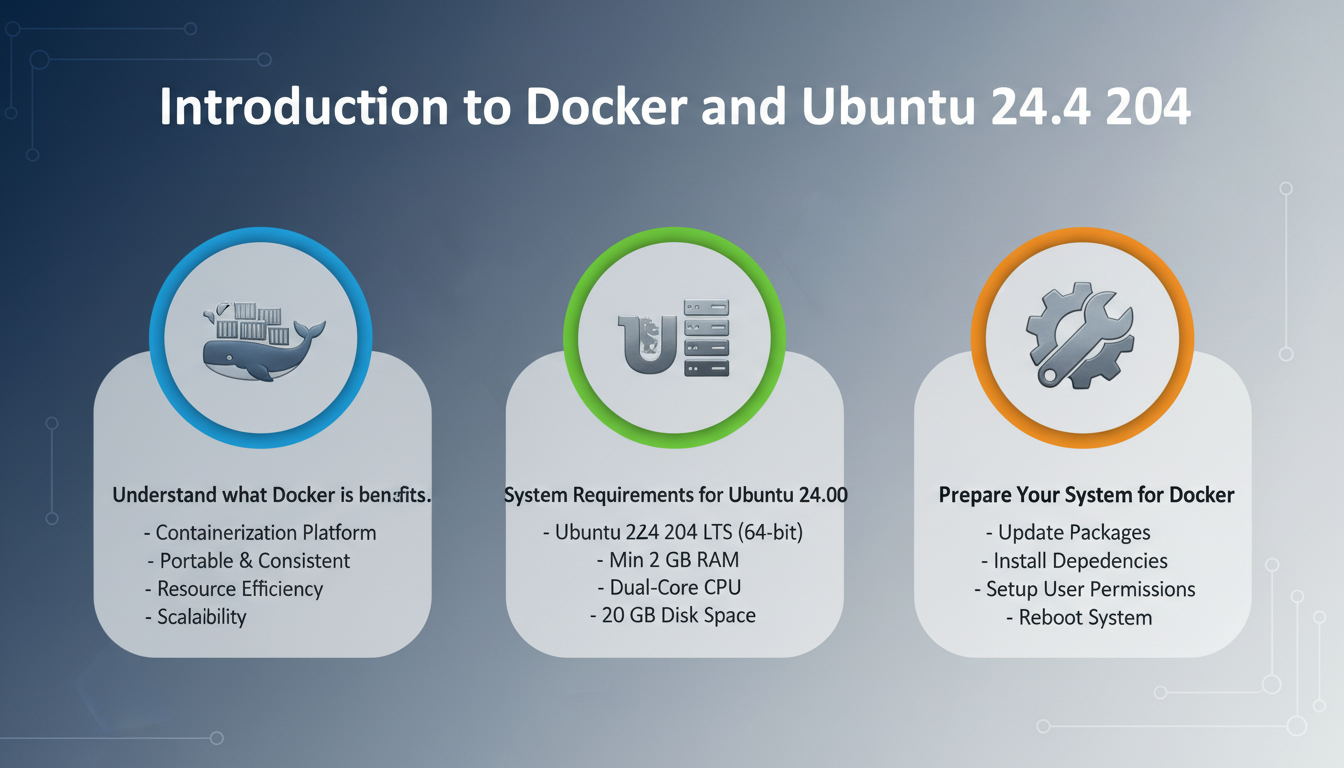
Docker is a popular platform for developing, shipping, and running applications inside lightweight, portable containers. It simplifies software deployment by encapsulating applications and their dependencies, ensuring consistency across different environments. With Docker, developers can create isolated environments, making it easier to manage complex projects and avoid conflicts between software packages.
One of Docker’s primary benefits is increased efficiency. Containers use fewer resources than traditional virtual machines, allowing
Best Practices & Common Mistakes
When installing Docker on Ubuntu 24.04, always ensure your system is up to date to prevent compatibility issues. Use the official Docker repositories to get the latest stable versions, avoiding outdated packages from default sources. Run Docker commands with proper permissions; adding your user to the Docker group eliminates the need for sudo each time. Be cautious with container resource allocation—overcommitting CPU or memory can lead to degraded performance. Regularly update Docker and containers to patch security vulnerabilities and improve stability. Avoid running containers as root unless necessary, to reduce security risks. Keep your images lean by removing unused layers and unnecessary files to optimize storage and speed. Use Docker Compose for managing multi-container applications efficiently, and always back up your Docker volumes and configurations. Be aware of network configurations; improper setup can expose containers to security threats. Monitor container logs and performance metrics to troubleshoot issues proactively. Lastly, follow Docker
Update your system packages
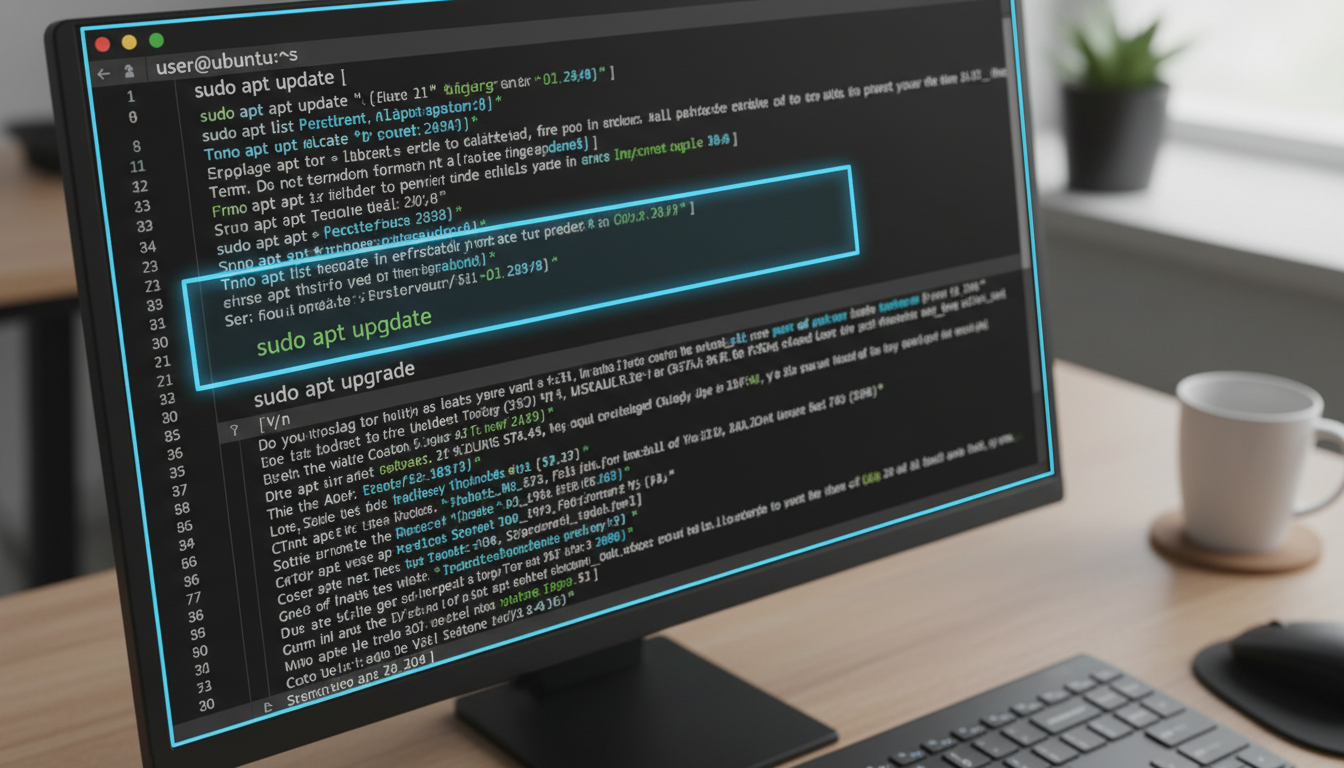
Before installing Docker on Ubuntu 24.04, it is crucial to ensure your system packages are up-to-date. This process helps prevent conflicts and ensures compatibility with the latest software versions. Starting with a fresh package list guarantees that you are installing the most recent updates available for your system.
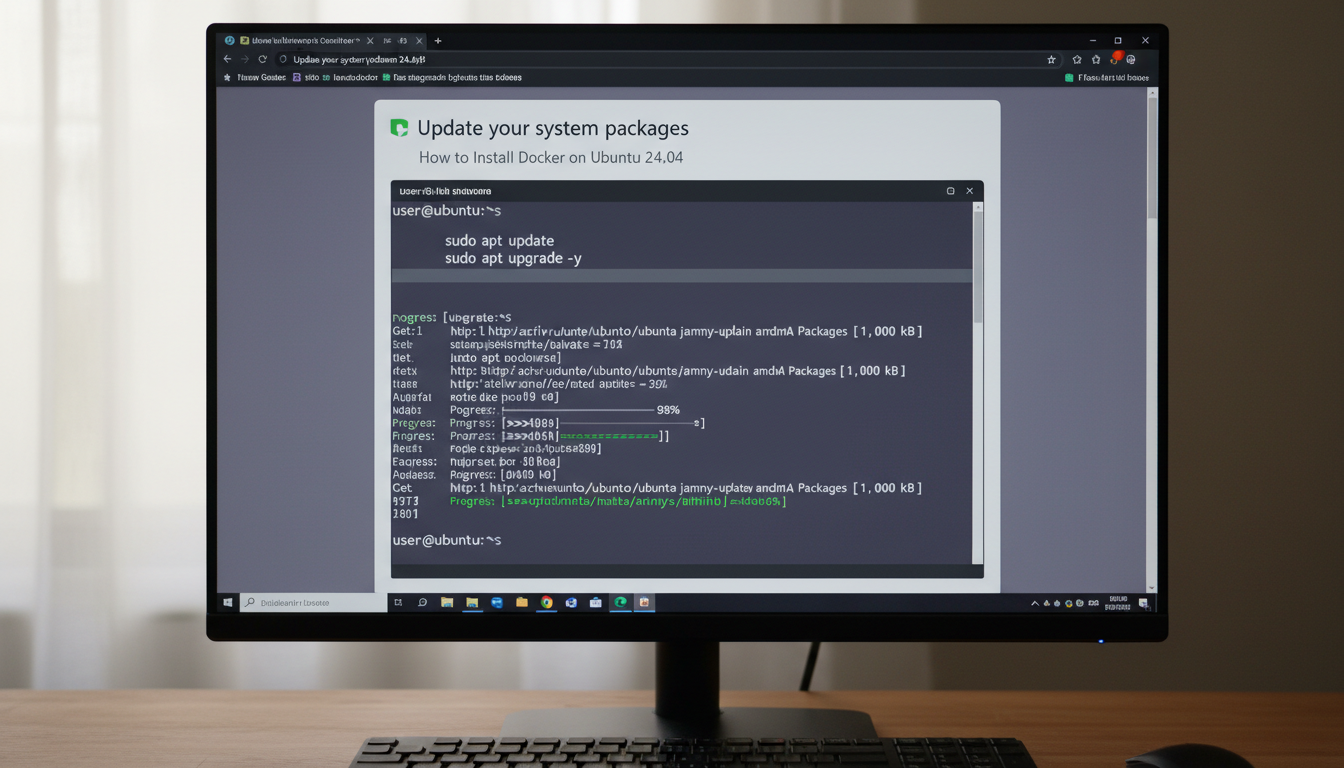
Open the terminal on your Ubuntu 24.04 machine. You can do this by pressing Ctrl+
Continue “Update your system packages” for “How to Install Docker on Ubuntu 24.04”
Best Practices & Common Mistakes
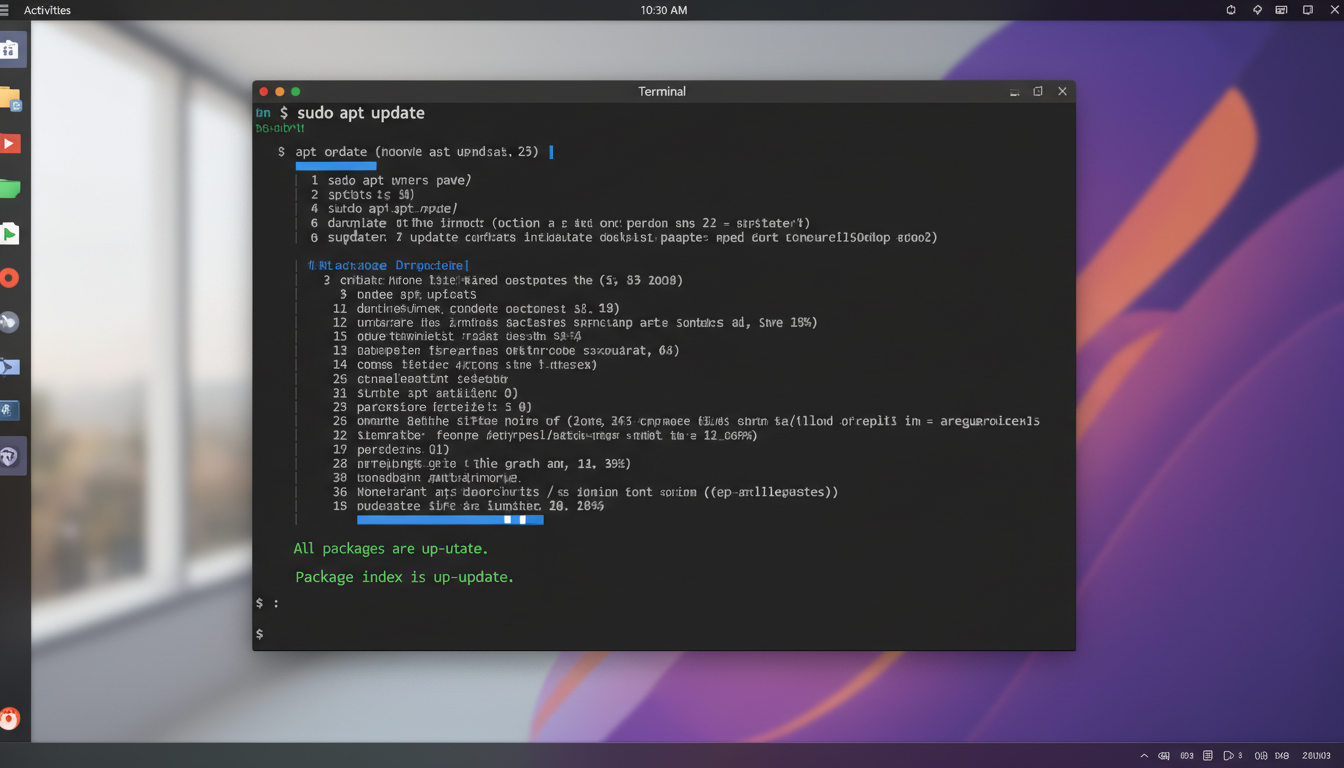
Ensure your system is fully updated before installing Docker to avoid compatibility issues. Use
sudo apt update && sudo apt upgraderegularly to keep your packages current. When installing Docker, follow the official instructions closely to prevent misconfigurations. Avoid installing Docker from third-party repositories, as they may contain outdated or insecure versions. Always verify the Docker GPG key and repository URLs to maintain security. Be cautious with user permissions; add your user to the ‘docker’ group using
sudo usermod -aG docker $USERto run Docker commands without sudo, but be aware of
Step-by-Step Tutorial
1. Update Package Index
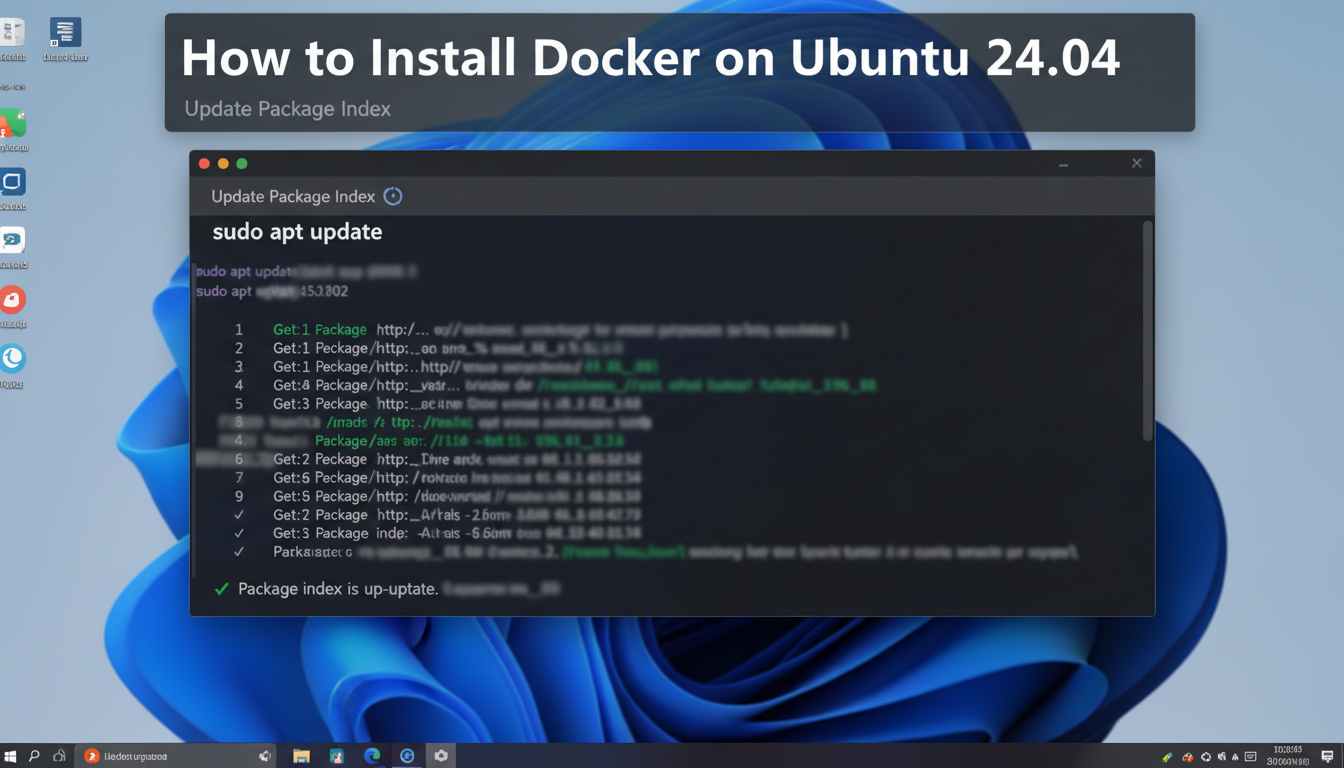
- Open your terminal by pressing Ctrl + Alt + T or searching for “Terminal” in your application menu. Once the terminal window is open, run the following command to refresh your system’s package list:
sudo apt updateThis command contacts the configured repositories and updates the local package index, ensuring you get the latest available versions of software packages. It is a crucial first step before installing new software to prevent any compatibility issues.
- Wait for the command
Troubleshooting & Verification
To verify that the package index was successfully updated, run
sudo apt update. Check for messages indicating “Hit” or “Ign” for repositories; if errors appear, such as “Could not resolve,” verify your internet connection and DNS settings. If updates are not reflected, try clearing the local cache with
sudo apt cleanand then rerun
sudo apt update. Common issues include outdated sources list or network problems; ensure your repositories are correctly configured in /etc/apt/sources.list. If you encounter GPG errors, import missing keys with
sudo apt-key adv --keyserver keyserver.ubuntu.com --recv-keys [KEY]. To confirm the package index is current, search for Docker packages using
apt-cache policy docker-ce</codeStep 2: Install Required Dependencies
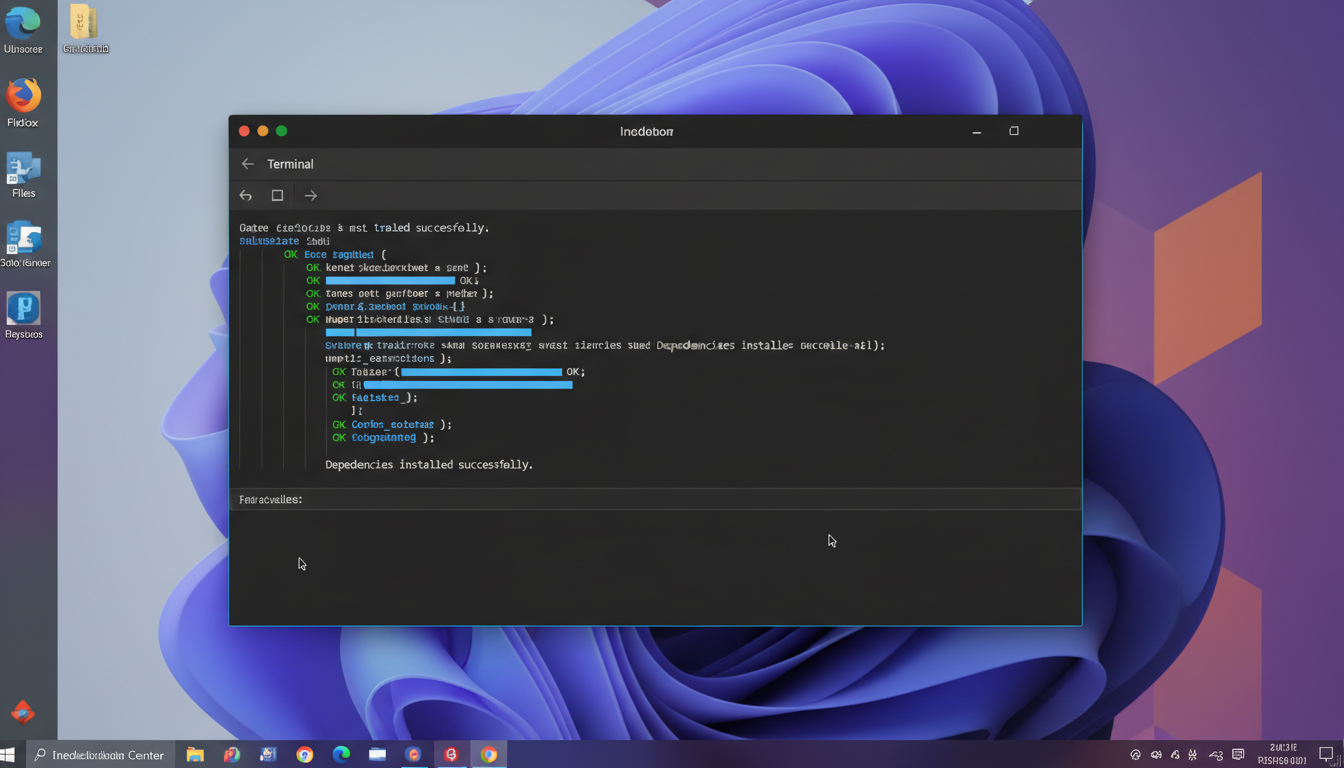
Ubuntu terminal confirming dependencies installed successfully. Installing dependencies on Ubuntu 24.04 - Update your package index: Before installing dependencies, ensure your package list is up-to-date by running:
sudo apt update - Install prerequisite packages: These packages are essential for adding new repositories and handling HTTPS connections securely:
sudo apt install apt-transport-https ca-certificates curl software-properties-common - Verify installation: After installation, check that these packages are installed correctly using:
dpkg -l | grep -E 'apt-transport-https|ca-certificates|curl|software-properties-commonTroubleshooting & Verification
Ensure that all required dependencies are correctly installed by verifying their presence. Check the Docker dependencies withdpkg -l | grep -E 'apt-transport-https|ca-certificates|curl|gnupg|lsb-release'. If any packages are missing, reinstall them using
sudo apt-get install --reinstall. Confirm the system recognizes the GPG key with
apt-key fingerprintto verify Docker’s official key is added. To troubleshoot network issues, test your connection to Docker repositories with
ping download.docker.com. If errors persist during dependency installation, update your package list with
sudo apt-get updateand try again. Always ensure your system is fully upgraded with
sudo aptConclusion
Learning how to install Docker on Ubuntu 24.04 is an essential step towards leveraging containerization technology for efficient application deployment. The process involves updating your system’s package index, installing necessary prerequisites, adding Docker’s official GPG key, and setting up the Docker repository to ensure you get the latest stable version. Once these steps are completed, installing Docker Engine is straightforward, enabling you to manage containers seamlessly on your Ubuntu system. Mastering this installation process empowers you to streamline development workflows, enhance scalability, and improve resource utilization across your projects.
By following the detailed steps for how to install Docker on Ubuntu 24.04, you establish a robust foundation for working with containerized applications. The benefits of Docker include consistent environments, rapid deployment, and simplified testing, which are critical for modern development practices. Additionally, Docker’s compatibility with various tools and platforms makes it a versatile choice for both individual developers and enterprise teams. As you gain
Introduction to Docker and Ubuntu 24.04
Docker is an open-source platform that automates the deployment, scaling, and management of applications using containerization technology. Containers package applications and their dependencies into portable units, ensuring consistency across different environments. Ubuntu 24.04, the latest Long-Term Support (LTS) release, provides a stable and secure operating system ideal for deploying Docker-based applications.
Docker on Ubuntu 24.04 leverages the system’s robust package management and security features, making it an excellent choice for developers and sysadmins. Installing Docker involves configuring the system repositories, installing the Docker Engine, and verifying the setup. This process allows you to run, manage, and orchestrate containers seamlessly.
Understanding the integration between Docker and Ubuntu 24.04 is crucial
Update your system packages
Before installing Docker, it is crucial to ensure your system packages are up-to-date. This process not only guarantees that you have the latest security patches and bug fixes but also helps prevent compatibility issues during Docker installation. Start by opening your terminal and executing the command:
sudo apt updateThis command refreshes the list of available packages and their versions from all configured repositories. After updating the package list, it’s recommended to upgrade existing packages to their latest versions to maintain system stability. Use:
sudo apt upgrade -yThe
-yflag automatically confirms prompts, streamlining the upgrade process. This step ensures your system isFrequently Asked Questions
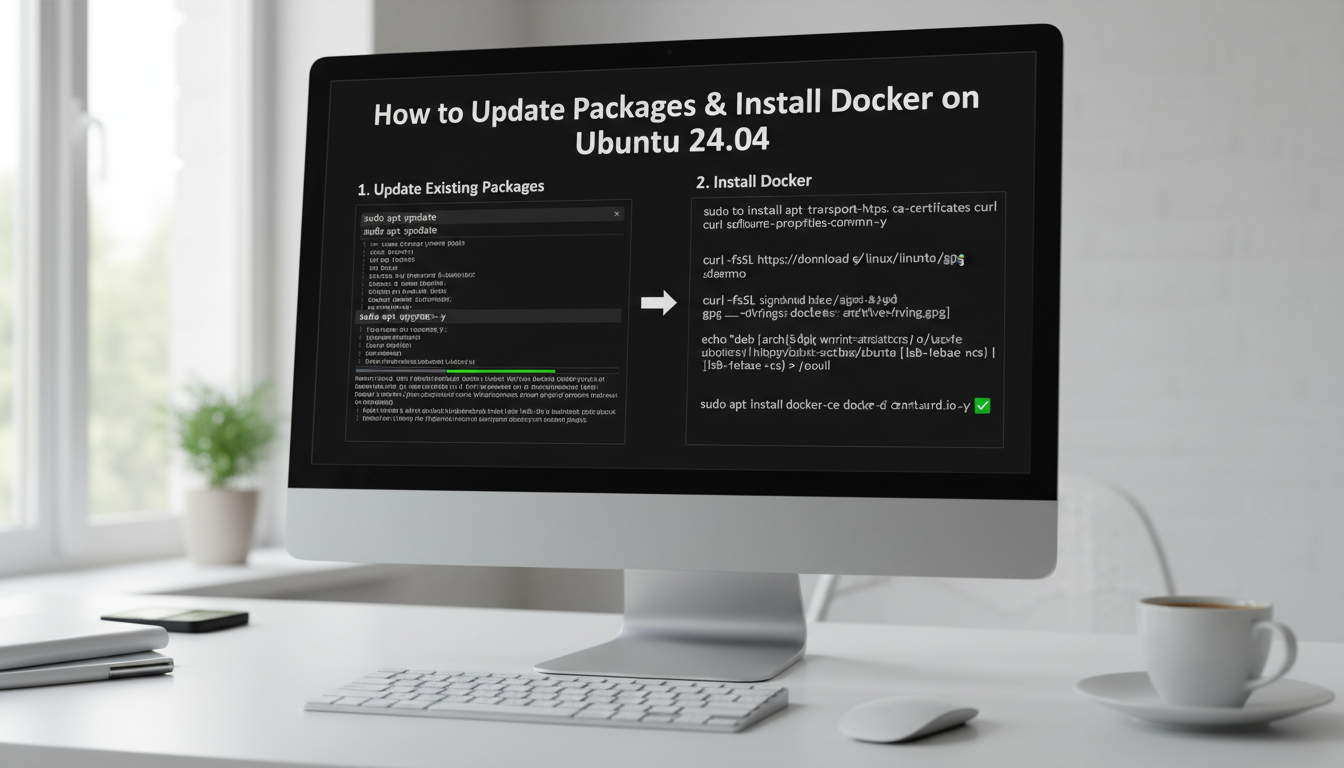
Updating packages before Docker installation on Ubuntu 24.04.
How do I update existing packages before installing Docker?
Before installing Docker on Ubuntu 24.04, it’s recommended to update your system packages to ensure compatibility. Use the command
sudo apt update && sudo apt upgradeto refresh package lists and upgrade installed packages. This process ensures your system has the latest updates and security patches, reducing potential conflicts during Docker installation. After completing the updates, you can proceed confidently with installing Docker, knowing your system is current and secure.
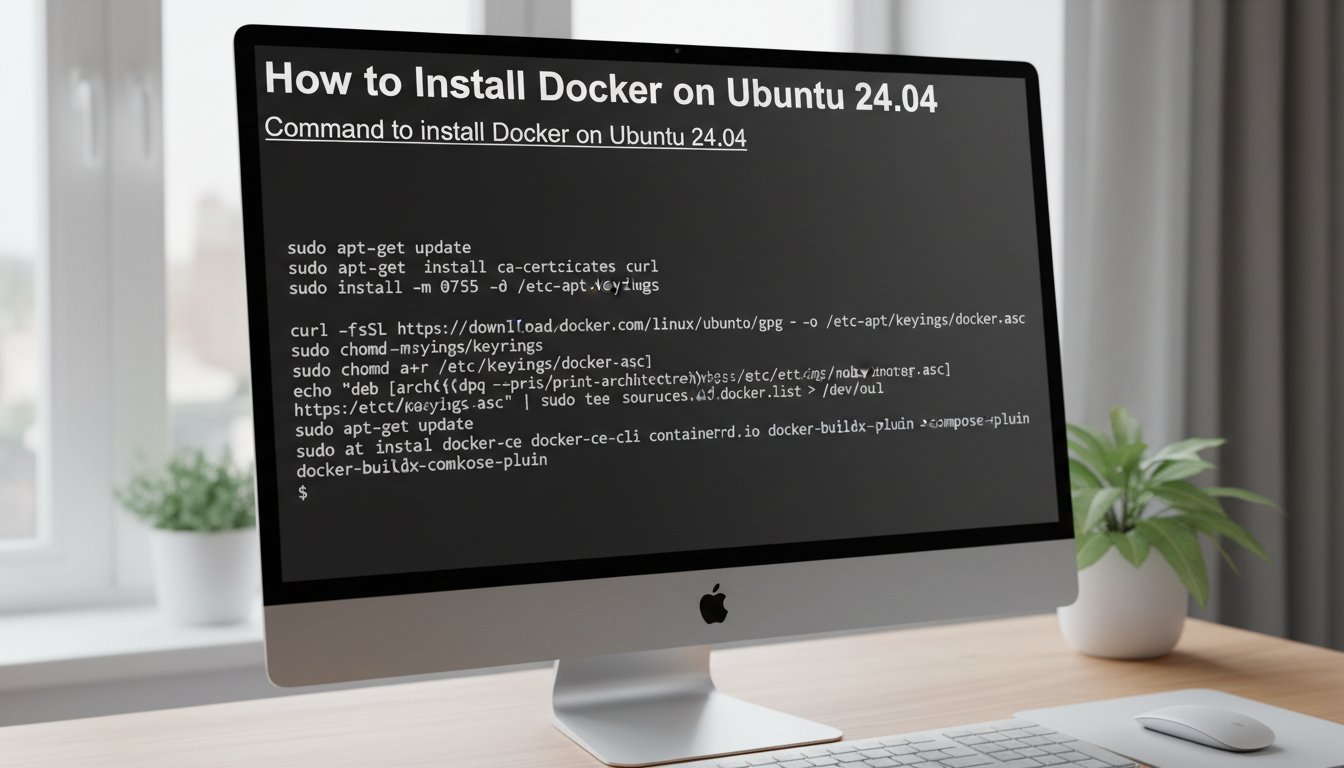
How to install Docker on Ubuntu 24.04What is the command to install Docker on Ubuntu 24.04?
To install Docker on Ubuntu 24.04, first set up the Docker repository and key. Then run the command
sudo apt install docker-ce docker-ce-cli containerd.ioto install Docker Community Edition, Docker CLI, and containerd.
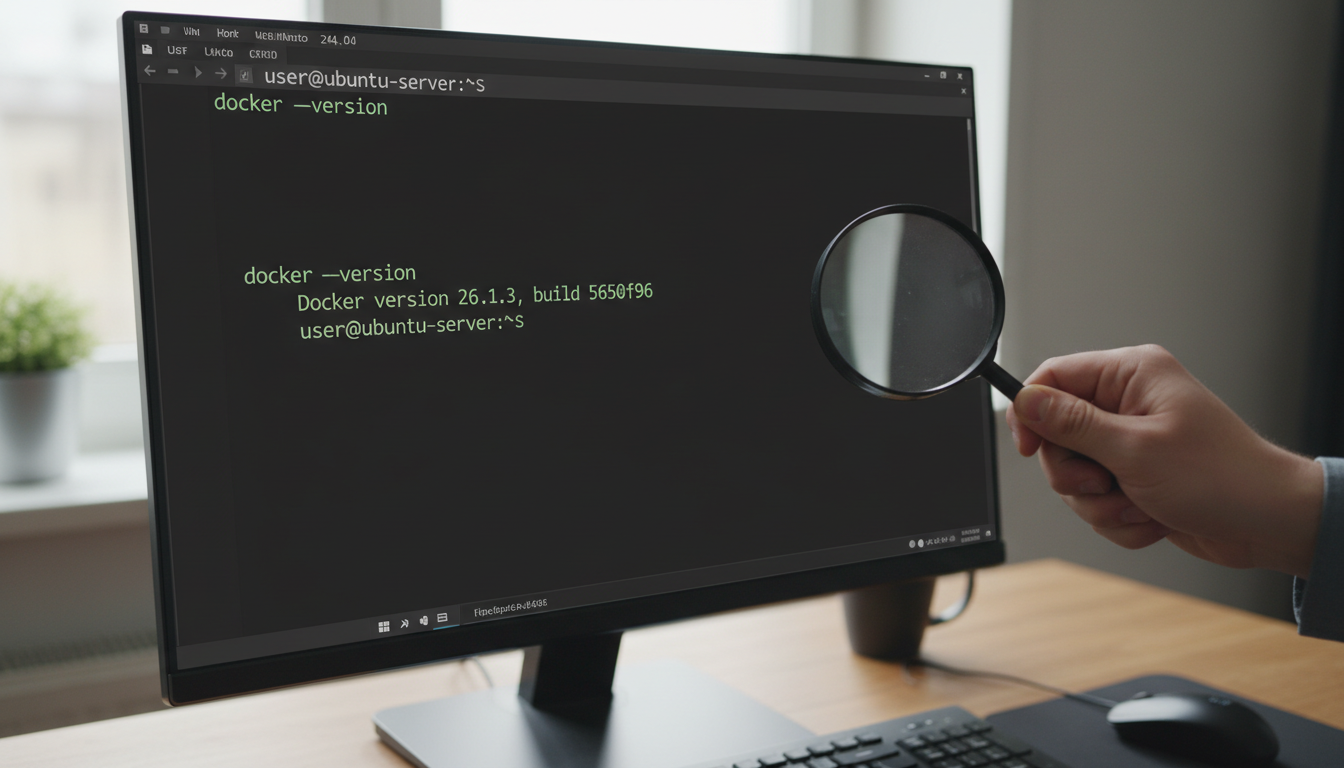
Verify Docker installation on Ubuntu 24.04 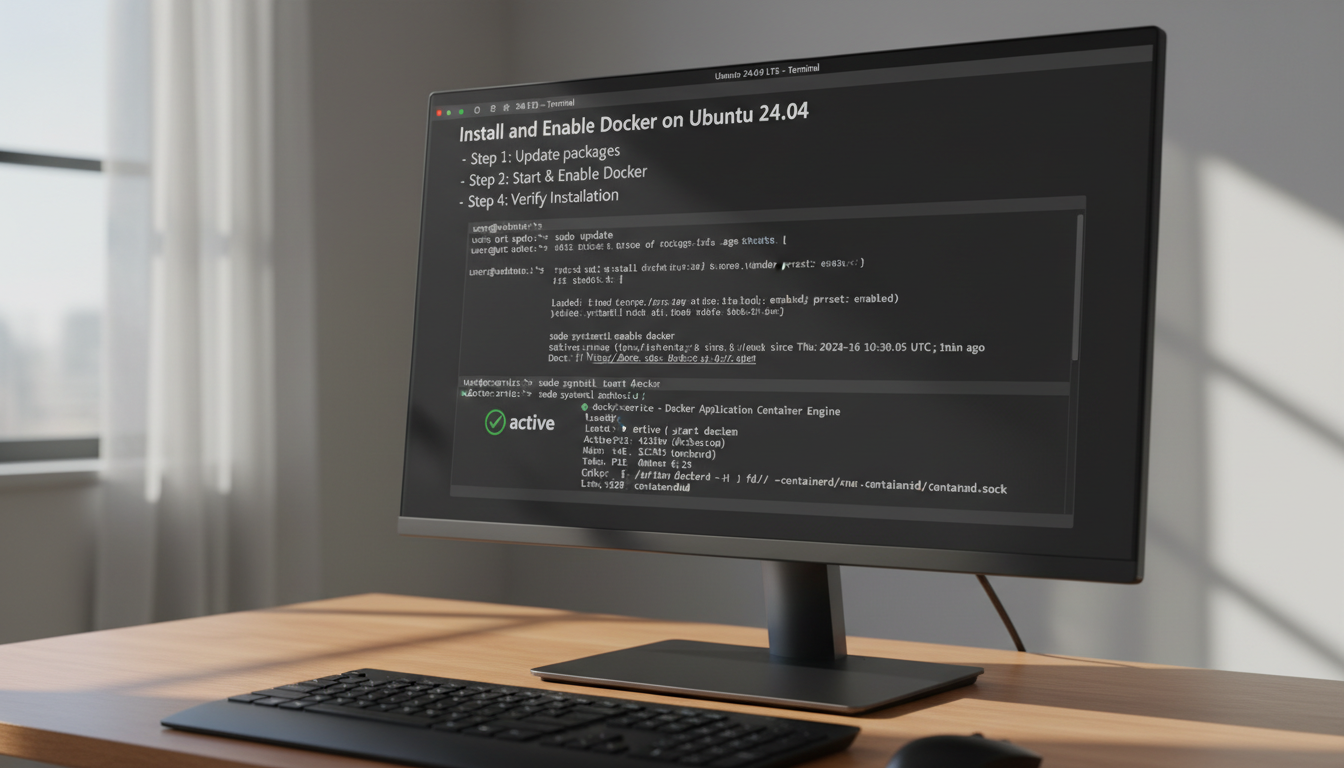
Guide to starting and enabling Docker on Ubuntu 24.04 Conclusion
Learning how to install Docker on Ubuntu 24.04 is an essential step towards leveraging containerization technology for efficient application deployment. The process involves updating your system’s package index, installing necessary prerequisites, adding Docker’s official GPG key, and setting up the Docker repository to ensure you get the latest stable version. Once these steps are completed, installing Docker Engine is straightforward, enabling you to manage containers seamlessly on your Ubuntu system. Mastering this installation process empowers you to streamline development workflows, enhance scalability, and improve resource utilization across your projects.
By following the detailed steps for how to install Docker on Ubuntu 24.04, you establish a robust foundation for working with containerized applications. The benefits of Docker include consistent environments, rapid deployment, and simplified testing, which are critical for modern development practices. Additionally, Docker’s compatibility with various tools and platforms makes it a versatile choice for both individual developers and enterprise teams. As you gain
- Update your package index: Before installing dependencies, ensure your package list is up-to-date by running:

Related Articles



Stay ahead of the curve
Weekly tutorials, AI tools, and startup tech news in your inbox.