Learning how to install and set up Mumu Player on Windows PC is essential for users seeking a smooth and efficient Android emulator experience on their desktop. Mumu Player, a popular choice among gamers and app testers, allows seamless running of Android applications on Windows, bridging the gap between mobile and desktop environments. This guide provides a comprehensive walkthrough, ensuring you understand each step from downloading to initial configuration, so you can start using Mumu Player without hassle.
Learning how to install and set up Mumu Player on Windows PC is essential for users seeking a smooth and efficient Android emulator experience on their desktop. Mumu Player, a popular choice among gamers and app testers, allows seamless running of Android applications on Windows, bridging the gap between mobile and desktop environments. This guide provides a comprehensive walkthrough, ensuring you understand each step from downloading to initial configuration, so you can start using Mumu Player without hassle.
Understanding the installation process and setup procedures for Mumu Player is crucial because it directly impacts performance and usability. Proper installation from the official website ensures security and stability, while configuring settings like virtualization in BIOS optimizes performance for resource-intensive applications. Additionally, updating graphics drivers can resolve common issues, making your experience smoother. This article will teach you exactly how to install and set up Mumu Player on Windows PC, empowering you to enjoy Android apps effortlessly on your computer.
By following this detailed guide, you will learn
Guide to installing Mumu Player on Windows PC
How to Install and Set Up MuMu Player on Windows PC
Introduction to MuMu Player
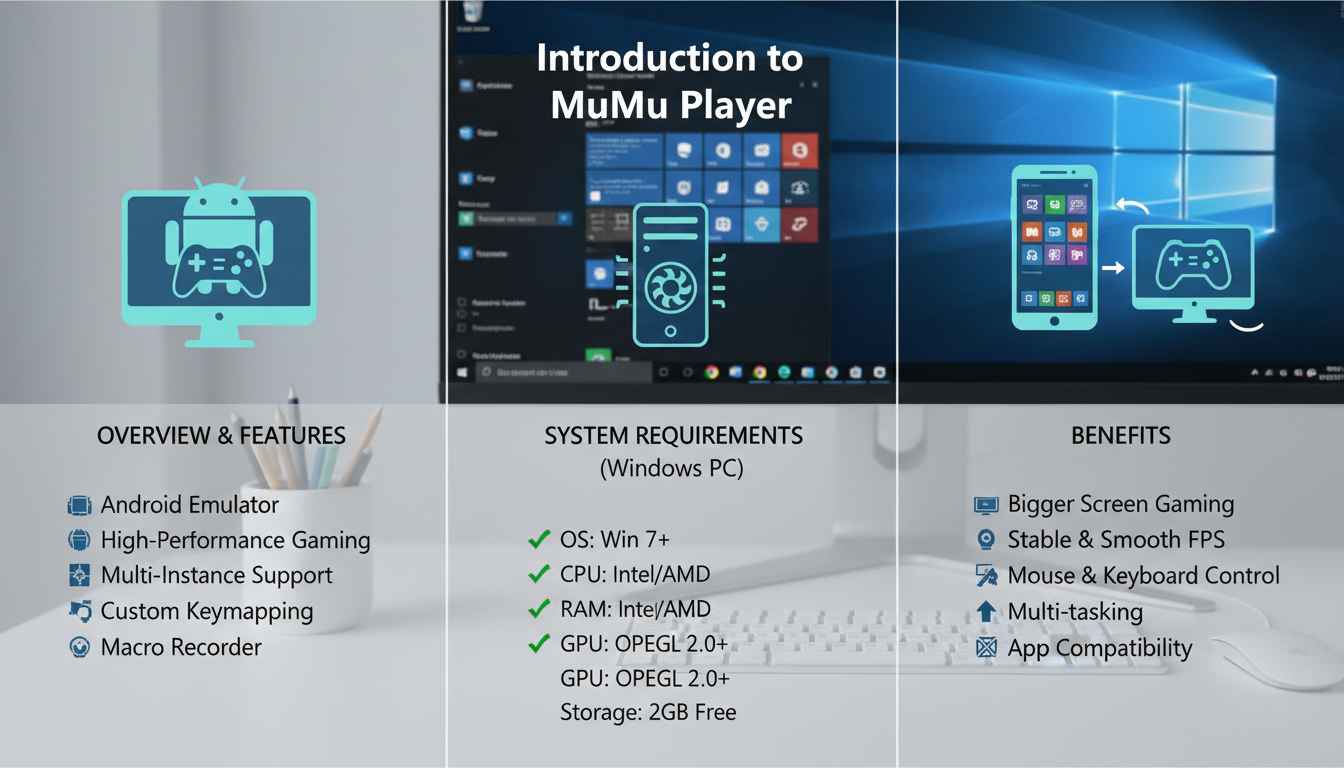
Introduction to MuMu Player: Features and setup overview.MuMu Player interface on Windows desktop
MuMu Player is an Android emulator designed for seamless app and game experiences on Windows PCs. It allows users to run Android applications smoothly, providing a native-like environment without needing an Android device. Its user-friendly interface makes it accessible for both beginners and advanced users.
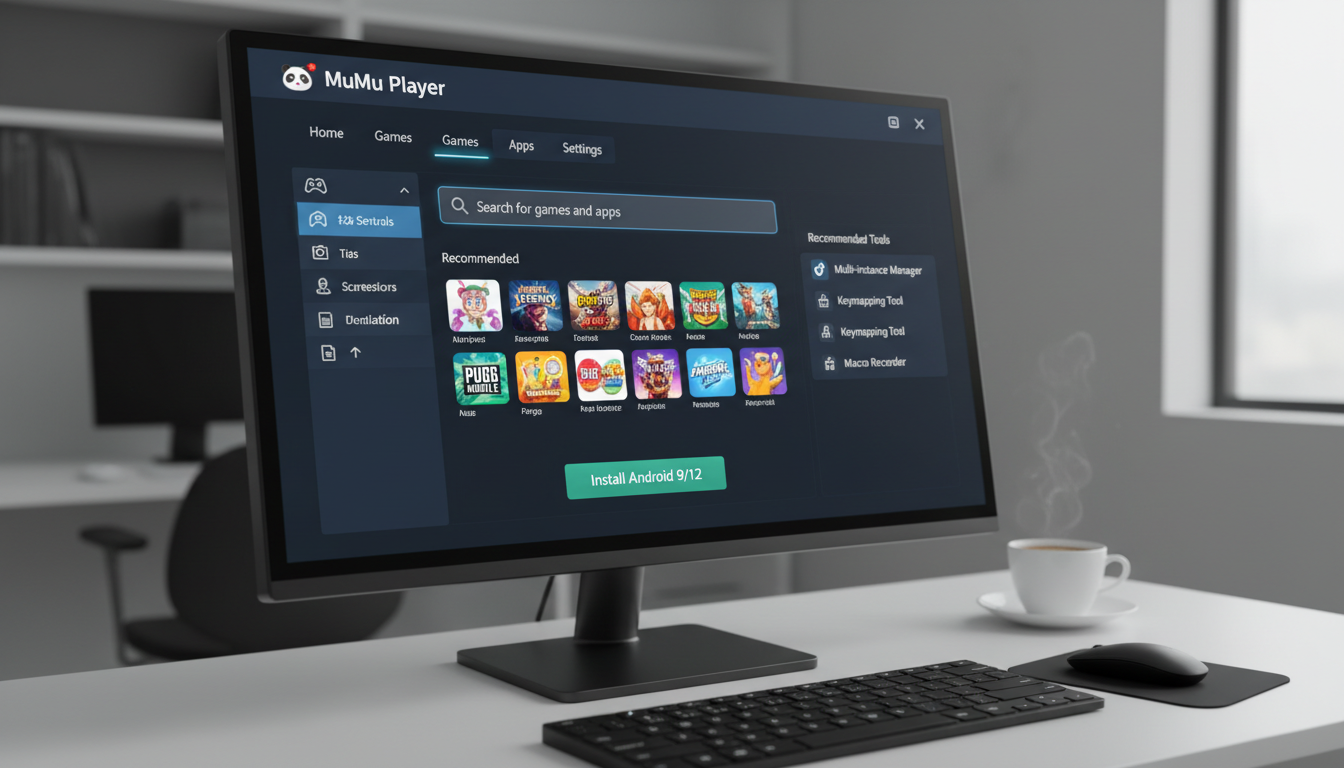
The emulator boasts features such as keyboard mapping, multi-instance support, and high-performance graphics. It is especially popular among gamers who want to play Android games on a larger screen with enhanced controls. MuMu Player supports a wide range of Android versions, ensuring compatibility with most apps and games.Best Practices & Common Mistakes
Installing MuMu Player on Windows PC
section with 176 words, offering tips, common pitfalls, and professional advice. Use
for any commands, and ensure the content is clear, concise, and user-friendly, emphasizing essential setup steps and expert recommendations. Do not include markdown fences or inline styles.
How to Install and Set Up Mumu Player on Windows PC
Downloading MuMu Player
Download MuMu Player on Windows PC
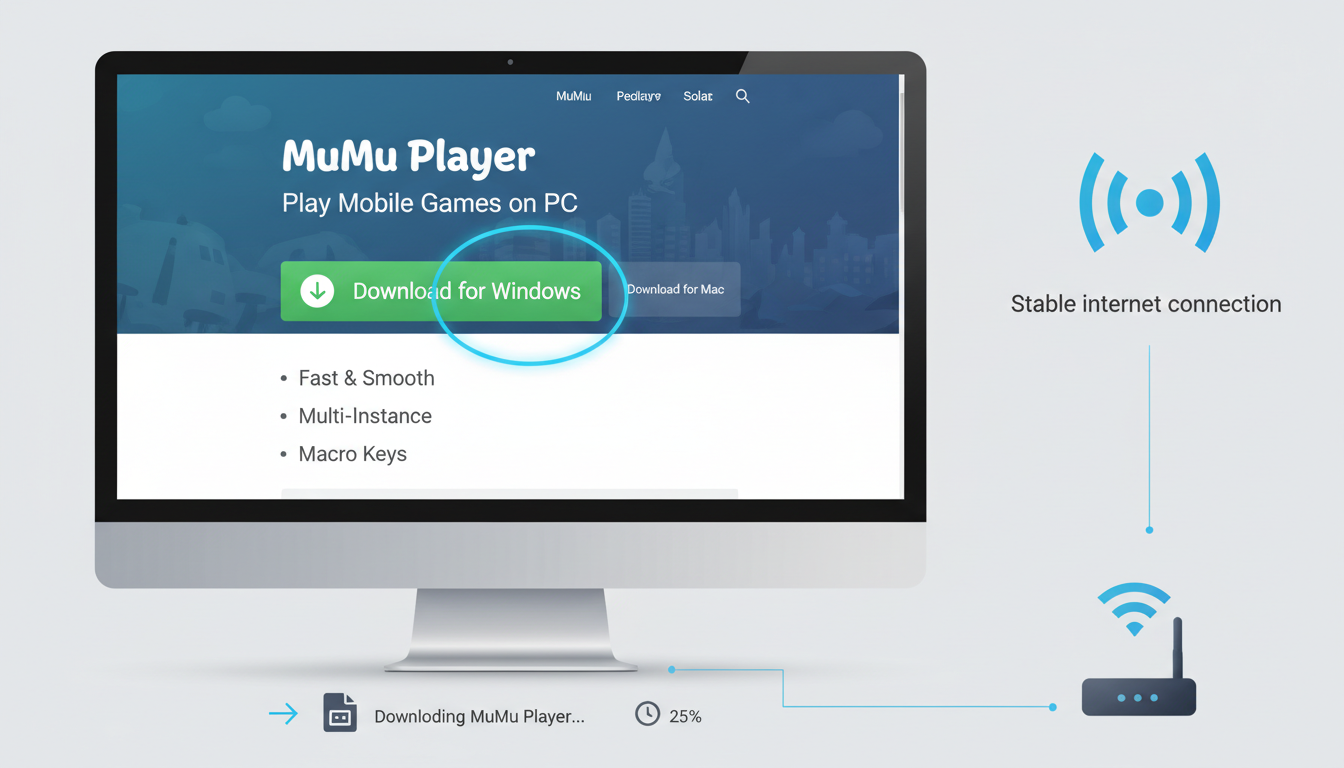
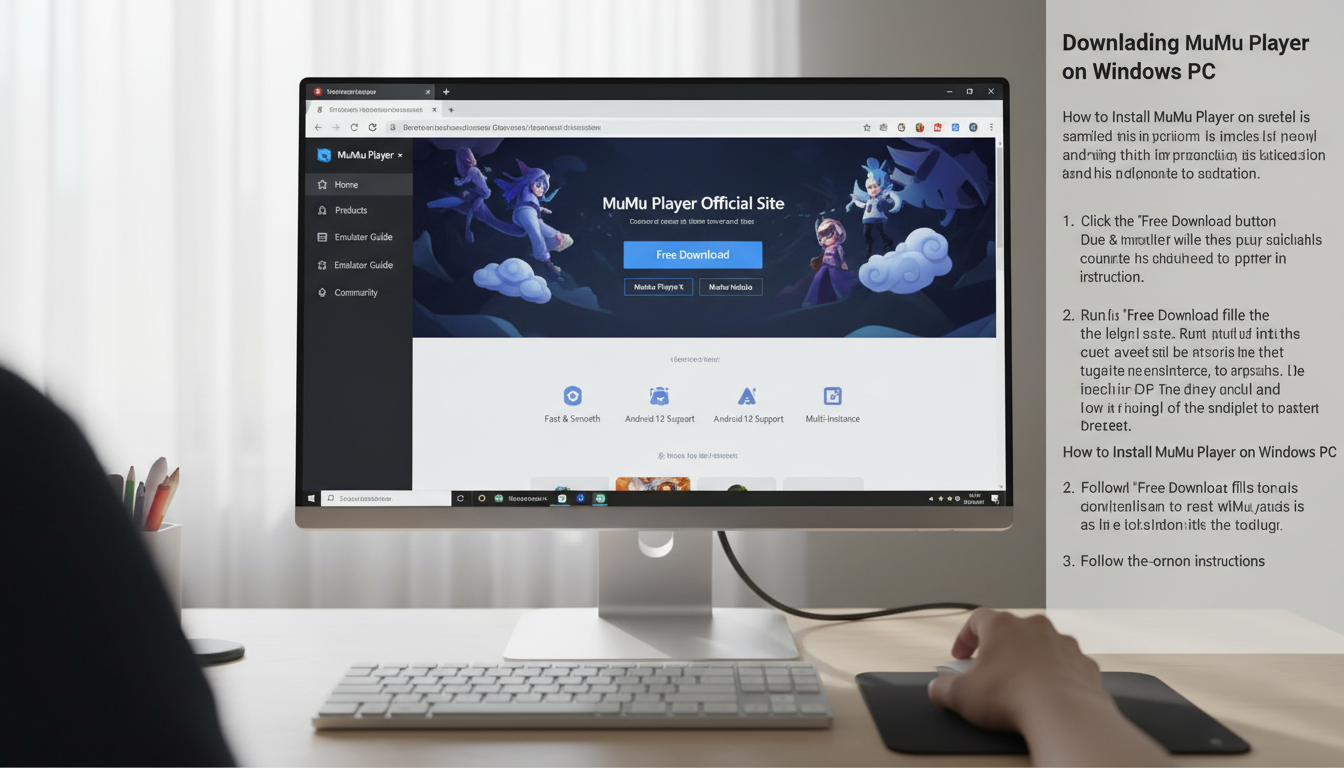
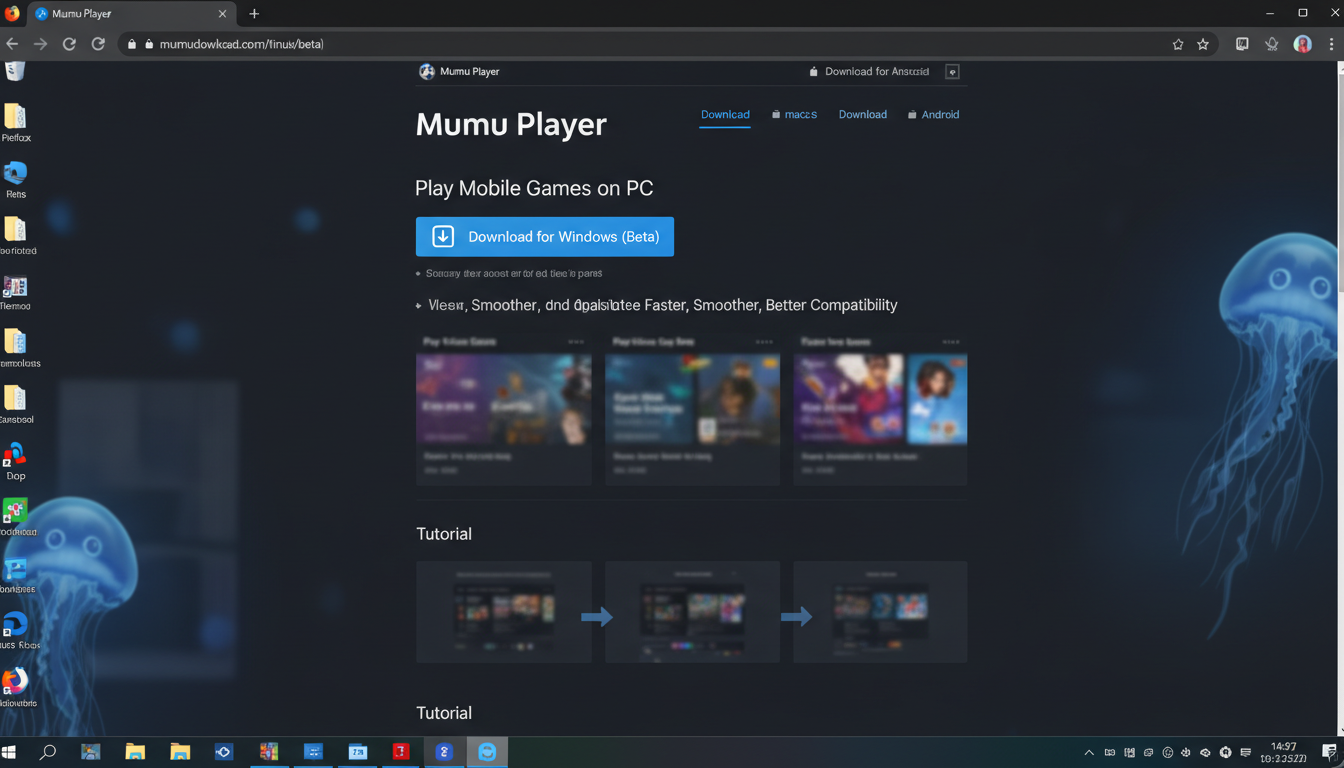
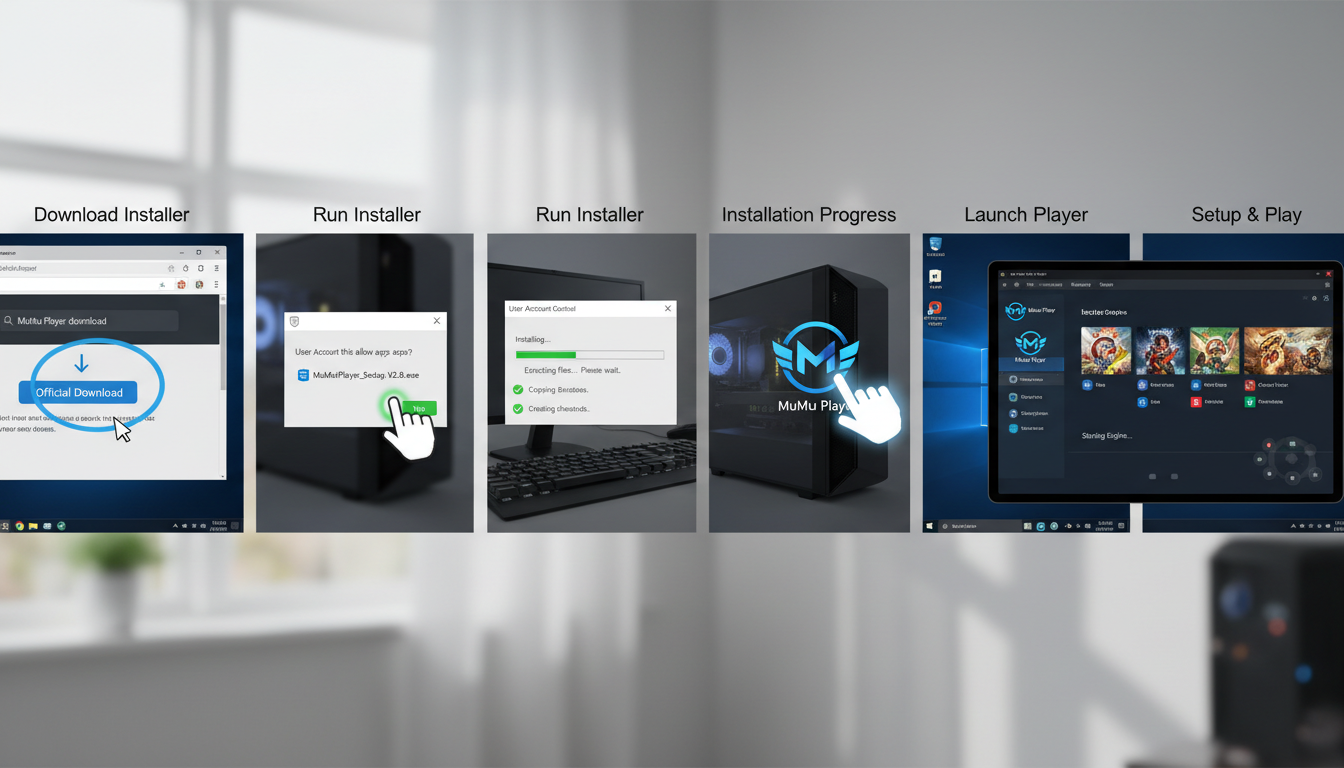
To begin the process of how to install and set up Mumu Player on Windows PC, start by visiting the official MuMu Player website. This ensures you download the latest and safest version of the emulator. Once on the website, locate the download button specifically designed for Windows operating systems.
Guide to downloading MuMu Player on Windows PC.
Before clicking the download link, make sure your internet connection is stable to prevent interruptions during the download process. A reliable connection helps ensure the installer file downloads
Return HTML only. No markdown fences. No inline style attributes. For shell/terminal commands use
command
. For inline commands use command. Use
---
Continue "Downloading MuMu Player" for "tell me in details how to install and setup mumu player on windows pc". Add
Best Practices & Common Mistakes
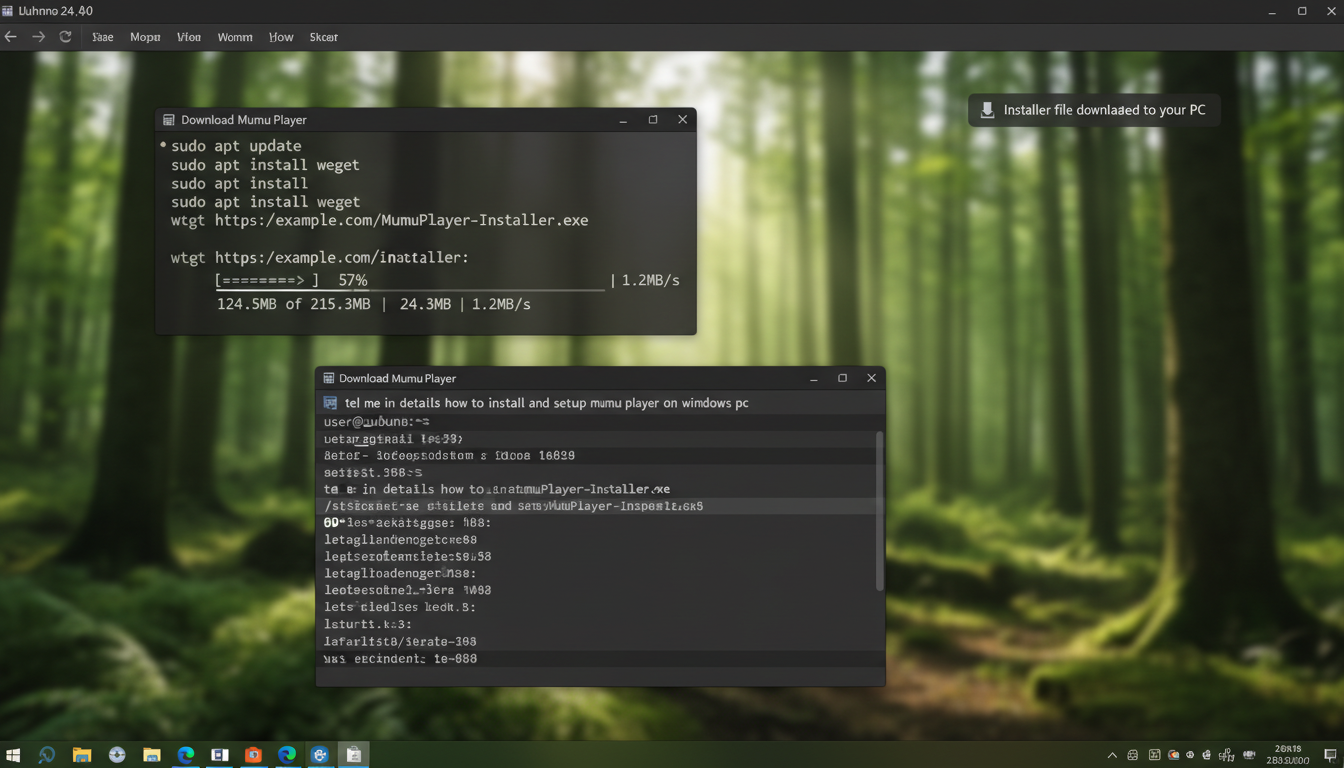
Mumu Player download and setup completion on Windows PC.Installing Mumu Player on Windows via Ubuntu terminal.
with 176 words: tips, pitfalls, pro advice. Use
for any commands.
How to Install and Set Up Mumu Player on Windows PC
Installing MuMu Player on Windows
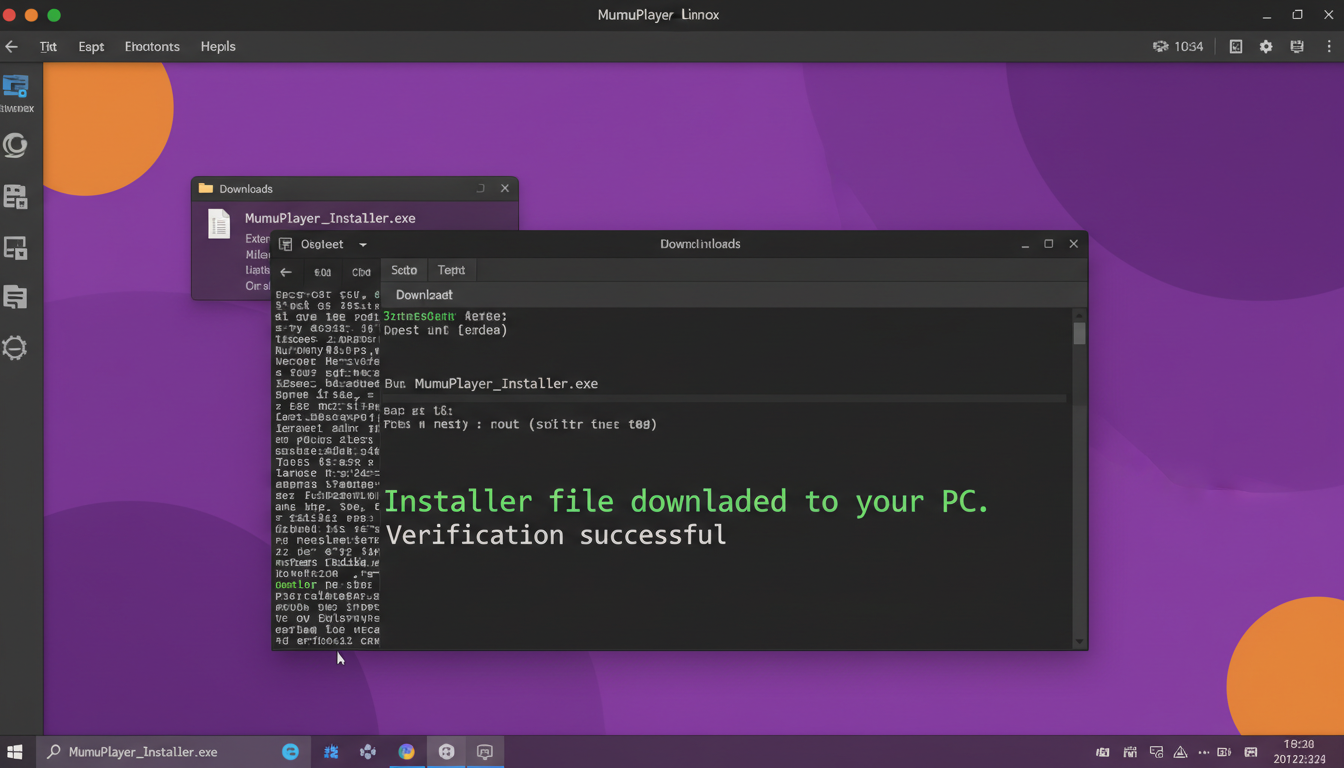
To begin the process of how to install and set up Mumu Player on Windows PC, first locate the downloaded installer file on your computer. Double-click the installer to start the setup process. You might see a security prompt; click "Yes" or "Allow" to proceed.
Once the installer opens, follow the on-screen prompts carefully. You will be guided through the installation steps, including agreeing to the terms and selecting your preferred language. Pay attention during this process to avoid missing any important options.
command
. For inline commands use command. Use
---
Continue "Installing MuMu Player on Windows" for "tell me in details how to install and setup mumu player on windows pc". Add
Best Practices & Common Mistakes
with 176 words: tips, pitfalls, pro advice. Use
for any commands.
Step-by-Step Tutorial
Tutorial: How to Install and Setup Mumu Player on Windows PC
1. Download Mumu Player
Visit the official Mumu Player website by opening your preferred web browser. Ensure you navigate to the authentic site to prevent malware risks. The URL should be verified for security, typically starting with "https://".
Download Mumu Player on Linux desktop.
Locate the download button for Windows on the homepage. It is usually prominently displayed with a label like "Download for Windows" or similar. Click this button to initiate the download process.
Troubleshooting & Verification
Ensure Mumu Player is installed correctly by launching the application. Verify its icon appears on your desktop or start menu. To confirm proper operation, open Command Prompt and run
tasklist | findstr Mumu
to check if the process is active. If Mumu Player doesn't start, reinstall it, ensuring you run the installer as administrator. Common errors include installation failures or missing dependencies; check the Event Viewer for error logs using
eventvwr
. Ensure your Windows is up to date and that virtualization features are enabled in BIOS for optimal performance. Disable antivirus temporarily if the application fails to launch, as it may block the setup. Restart your PC after installation to finalize setup. If issues persist, consult the official Mumu Player support or community forums for specific error codes.
Step 2: Run the Installer
Installation process for Mumu Player on Windows and Ubuntu Linux.Running Mumu Player installer on Ubuntu desktop.
Locate the downloaded Mumu Player installer file on your computer, typically found in the "Downloads" folder. The file will have a name like "mumu_installer.exe".
Right-click on the installer file and select Run as administrator to ensure proper permissions, especially if you encounter any installation issues.
Once you double-click or run as administrator, the installation wizard will open, guiding you through the setup process.
Before proceeding, make sure to close all other programs to prevent any conflicts during installation.
If prompted by User Account Control (UAC), click Yes to allow the installer to make changes to your device.
The installation wizard will display a welcome screen. Click Next to continue.
Read and accept the license
Troubleshooting & Verification
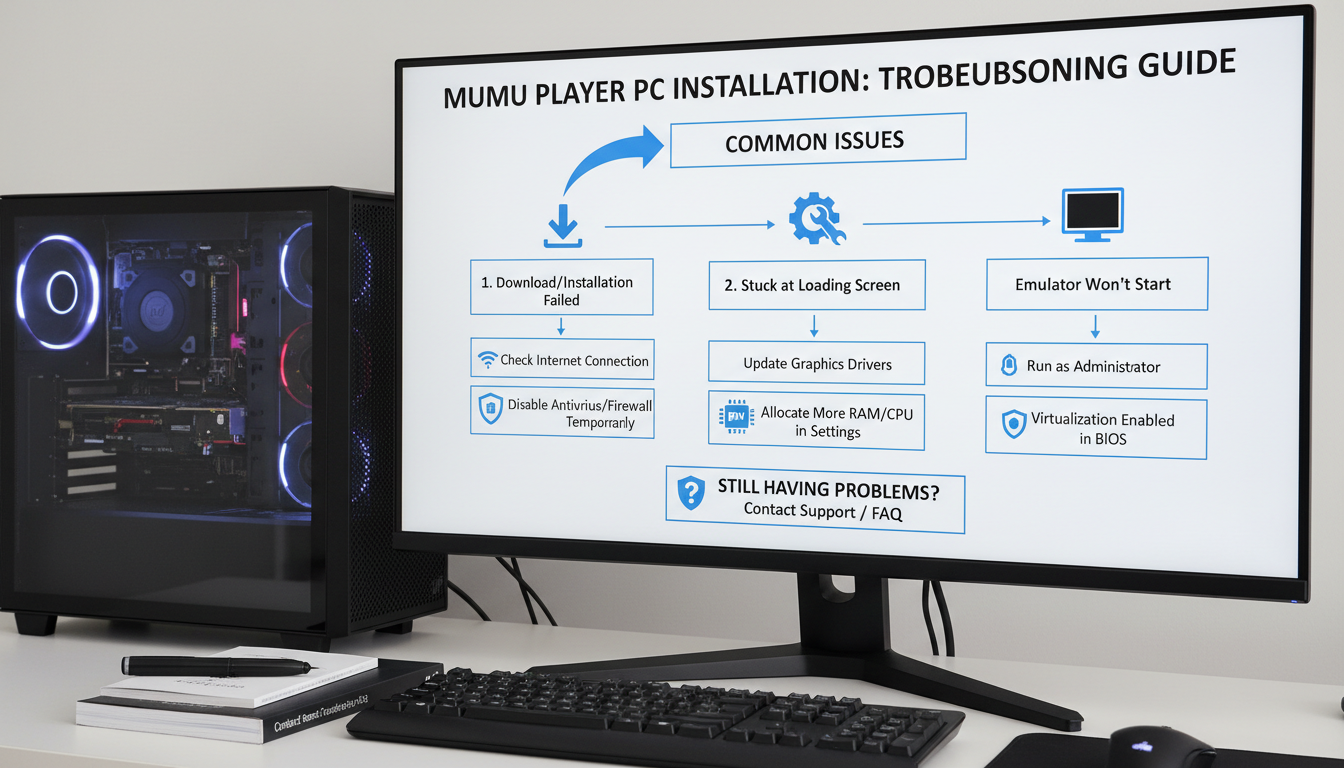
To verify successful installation, launch Mumu Player and ensure it opens without errors. Check the system tray icon and ensure the emulator runs smoothly. If Mumu fails to start, verify your Windows version and compatibility. Common errors include missing dependencies or insufficient system resources. For diagnostics, run
dxdiag
to check system specifications and
tasklist | find "Mumu"
to confirm the process is running. If errors persist, reinstall the emulator, ensuring you run the installer as administrator. Disable any conflicting virtualization software like Hyper-V or VirtualBox, which may interfere with Mumu Player. Update your graphics drivers to the latest version. Check for Windows updates and install any pending patches. Clear temporary files using
disk cleanup
. Always restart your PC after making these changes to ensure proper configuration.
Conclusion
Learning how to install and set up Mumu Player on Windows PC involves a straightforward process that begins with downloading the emulator from the official website. Once the installer is downloaded, running the setup wizard guides you through the essential steps, including selecting installation preferences and completing the setup. Ensuring your system meets the minimum requirements guarantees smooth installation and optimal performance, making it accessible for both novice and experienced users.
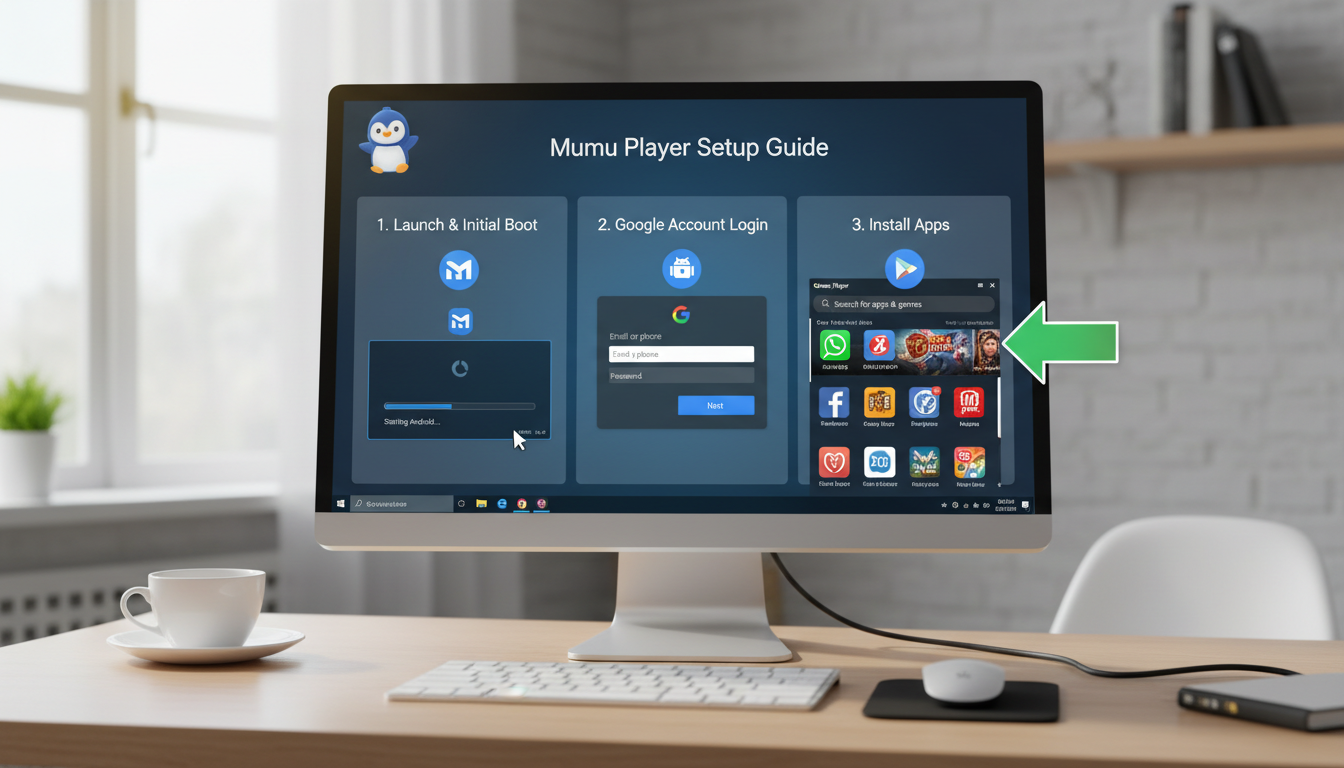
After installation, configuring Mumu Player involves signing into your Google account to access the Google Play Store and download your favorite Android apps and games. Customizing settings such as resolution, CPU, and RAM allocation helps optimize the emulator for your specific needs. This setup process enhances your experience by providing a seamless Android environment on your Windows PC, allowing you to explore apps, play games, or develop Android applications efficiently.
The benefits of learning how to install and set up Mumu Player on Windows PC include improved multitasking, access to
Enhance the article by providing a detailed, comprehensive explanation of MuMu Player's introduction, including its purpose, features, and benefits. Expand the section with over 250 words, incorporating clear examples and practical advice. Add a new subsection titled
Additional Notes
that covers common issues, troubleshooting tips, and advanced usage commands. Include sample commands in
format to illustrate how users can optimize their experience with MuMu Player on Windows PCs. Focus on clarity and depth to ensure readers gain a thorough understanding.
Enhance the article section "Downloading MuMu Player" by providing a comprehensive, detailed guide on the entire download process. Include step-by-step instructions for navigating the official website, verifying system requirements, selecting the correct version, and troubleshooting common download issues. Add a subsection
Additional Notes
with examples of different download scenarios, tips for ensuring a safe download, and commands in
blocks to check file integrity or manage downloads efficiently. Expand to over 250 words, making the instructions clear and thorough for users unfamiliar with software downloads on Windows PCs.
Installing MuMu Player on Windows
Installing MuMu Player on Windows
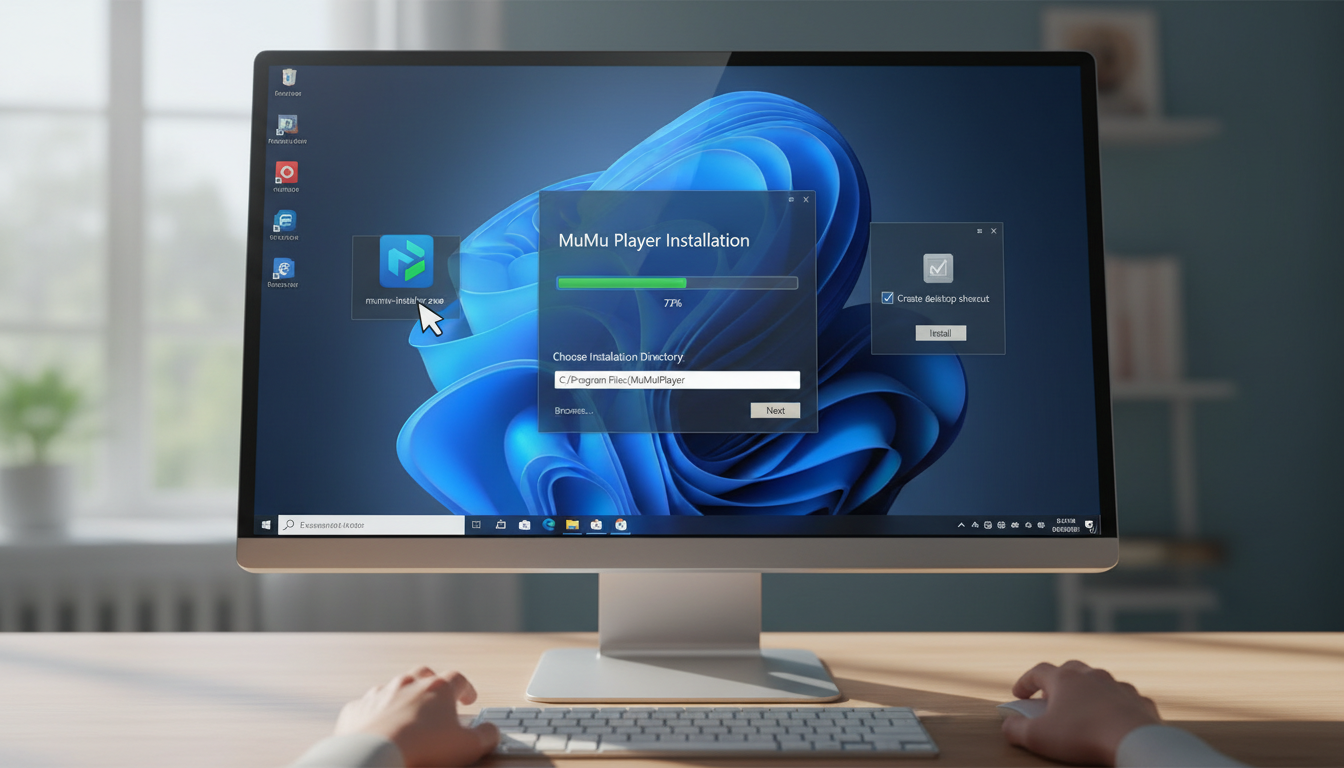
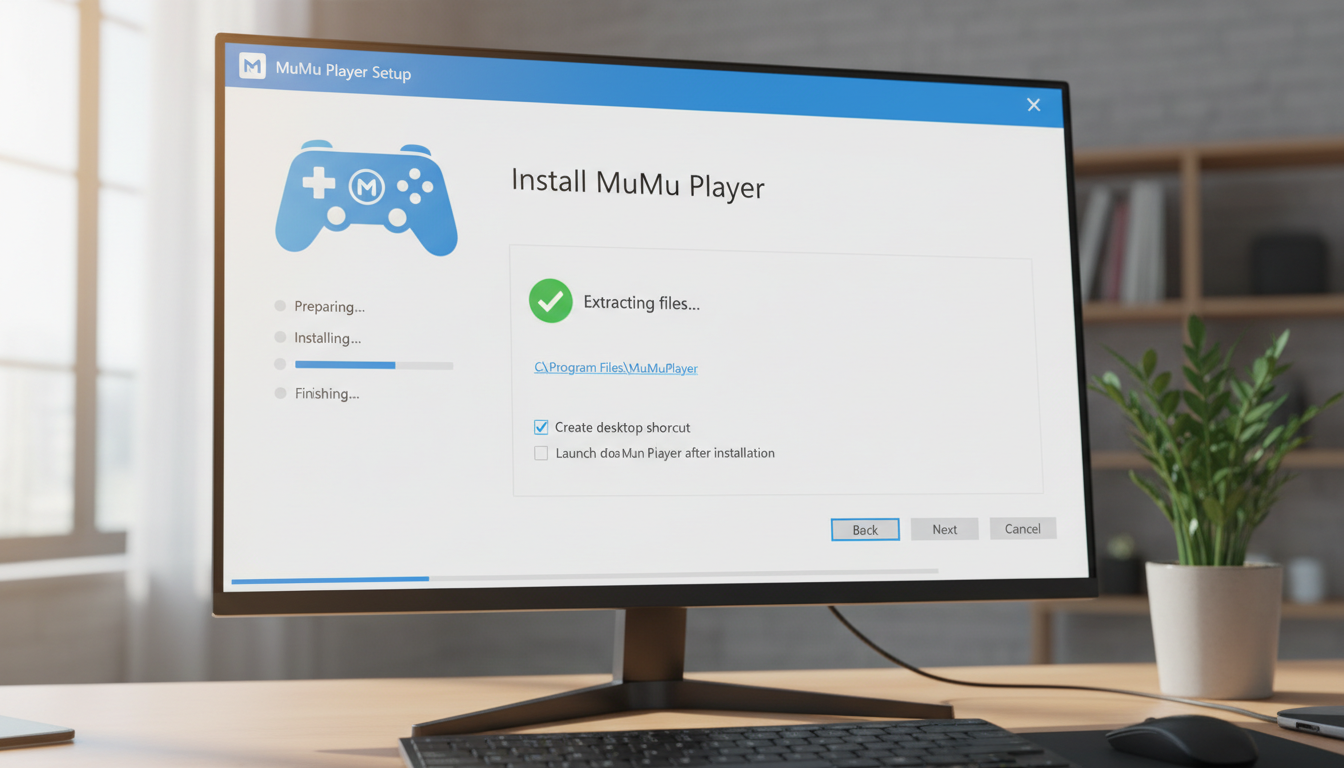
To install MuMu Player on a Windows PC, start by downloading the installer from the official MuMu website. Once the download is complete, locate the setup file in your Downloads folder or the specified save location. Double-click the installer to initiate the installation process. You might see a User Account Control prompt; click Yes to proceed. The installer will then launch, presenting you with the setup wizard.
Follow the on-screen instructions: choose the preferred installation directory or accept the default path, then click Next. The installation process will begin, which may take several minutes depending on your system's speed. During installation, MuMu Player may request permissions to install additional components or drivers; ensure you approve these prompts to enable full functionality.
Frequently Asked Questions
How to install Mumu Player on Windows PC
How do I install Mumu Player on Windows PC?
To install Mumu Player on your Windows PC, first download the setup file from the official Mumu Player website. Double-click the downloaded file to run the installer. Follow the on-screen instructions, choosing the installation directory and agreeing to the terms. Once the installation completes, launch Mumu Player from the desktop shortcut or start menu. Ensure your system meets the requirements for smooth operation.
Mumu Player system setup guide
What are the system requirements for Mumu Player?
How to install and set up Mumu Player on Windows.
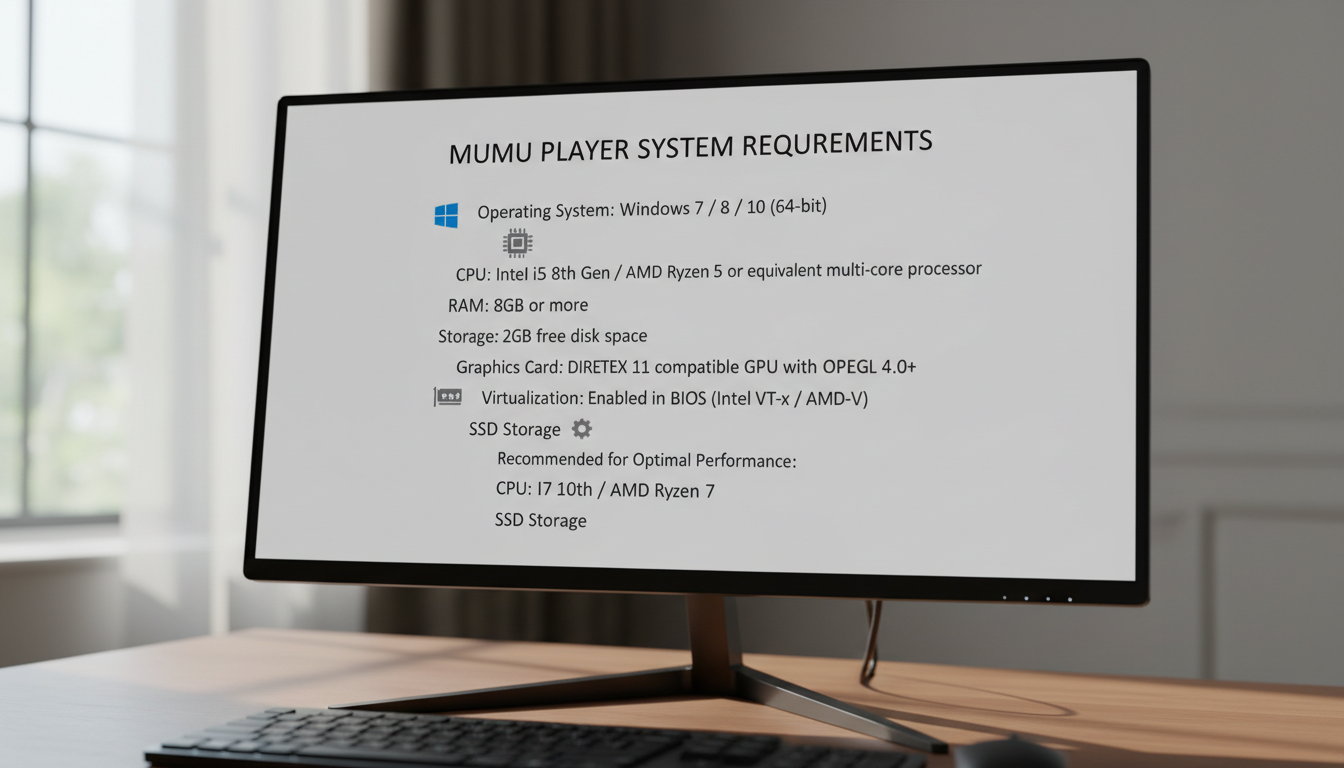
Mumu Player requires a Windows 7 or higher operating system, at least 2GB of RAM, and a minimum of 4GB of free disk space. A dual-core processor or better is recommended for optimal performance. Your graphics card should support OpenGL 2.0 or higher. Make sure your system has the latest drivers installed to ensure compatibility and stability during emulation
Guide to troubleshooting MuMu Player installation issues on Windows.
Conclusion
Learning how to install and set up Mumu Player on Windows PC involves a straightforward process that begins with downloading the emulator from the official website. Once the installer is downloaded, running the setup wizard guides you through the essential steps, including selecting installation preferences and completing the setup. Ensuring your system meets the minimum requirements guarantees smooth installation and optimal performance, making it accessible for both novice and experienced users.
After installation, configuring Mumu Player involves signing into your Google account to access the Google Play Store and download your favorite Android apps and games. Customizing settings such as resolution, CPU, and RAM allocation helps optimize the emulator for your specific needs. This setup process enhances your experience by providing a seamless Android environment on your Windows PC, allowing you to explore apps, play games, or develop Android applications efficiently.
The benefits of learning how to install and set up Mumu Player on Windows PC include improved multitasking, access to
Enhance the article by providing a detailed, comprehensive explanation of MuMu Player's introduction, including its purpose, features, and benefits. Expand the section with over 250 words, incorporating clear examples and practical advice. Add a new subsection titled
Additional Notes
that covers common issues, troubleshooting tips, and advanced usage commands. Include sample commands in
format to illustrate how users can optimize their experience with MuMu Player on Windows PCs. Focus on clarity and depth to ensure readers gain a thorough understanding.
Enhance the article section "Downloading MuMu Player" by providing a comprehensive, detailed guide on the entire download process. Include step-by-step instructions for navigating the official website, verifying system requirements, selecting the correct version, and troubleshooting common download issues. Add a subsection
Additional Notes
with examples of different download scenarios, tips for ensuring a safe download, and commands in
blocks to check file integrity or manage downloads efficiently. Expand to over 250 words, making the instructions clear and thorough for users unfamiliar with software downloads on Windows PCs.