How to Install Docker on Ubuntu 24.04
19 min read • 4,144 words
If you’re running Ubuntu 24.04 and need to containerize your applications, knowing how to correctly install Docker on Ubuntu 24.04 is essential for modern development and deployment workflows. Docker enables you to package software into standardized units called containers, which include everything needed to run an application—code, runtime, system tools, and libraries. This eliminates the infamous “it works on my machine” problem and streamlines collaboration across teams. Whether you’re a developer setting up a local environment, a DevOps engineer managing production servers, or a system administrator looking to isolate services, Docker provides the consistency and portability that today’s infrastructure demands.
If you’re running Ubuntu 24.04 and need to containerize your applications, knowing how to correctly install Docker on Ubuntu 24.04 is essential for modern development and deployment workflows. Docker enables you to package software into standardized units called containers, which include everything needed to run an application—code, runtime, system tools, and libraries. This eliminates the infamous “it works on my machine” problem and streamlines collaboration across teams. Whether you’re a developer setting up a local environment, a DevOps engineer managing production servers, or a system administrator looking to isolate services, Docker provides the consistency and portability that today’s infrastructure demands.
In this guide, you’ll learn the officially recommended method to install Docker on Ubuntu 24.04 using the apt package manager with Docker’s own stable repository. We’ll begin by ensuring a clean slate, removing any older or conflicting packages such as docker.io, docker-compose, or docker-doc that might interfere with your installation. Next, we’ll install the prerequisite packages—ca-certificates, curl, gnupg, and lsb-release—before securely adding Docker’s official GPG key and configuring their repository. After a successful installation, we’ll also cover how to run Docker commands without needing sudo by adding your user to the docker group. By the end, you’ll have a fully functional Docker environment ready for building, testing, and deploying containerized applications on your Ubuntu 24.04 system.

Introduction to Docker and Ubuntu 24.04
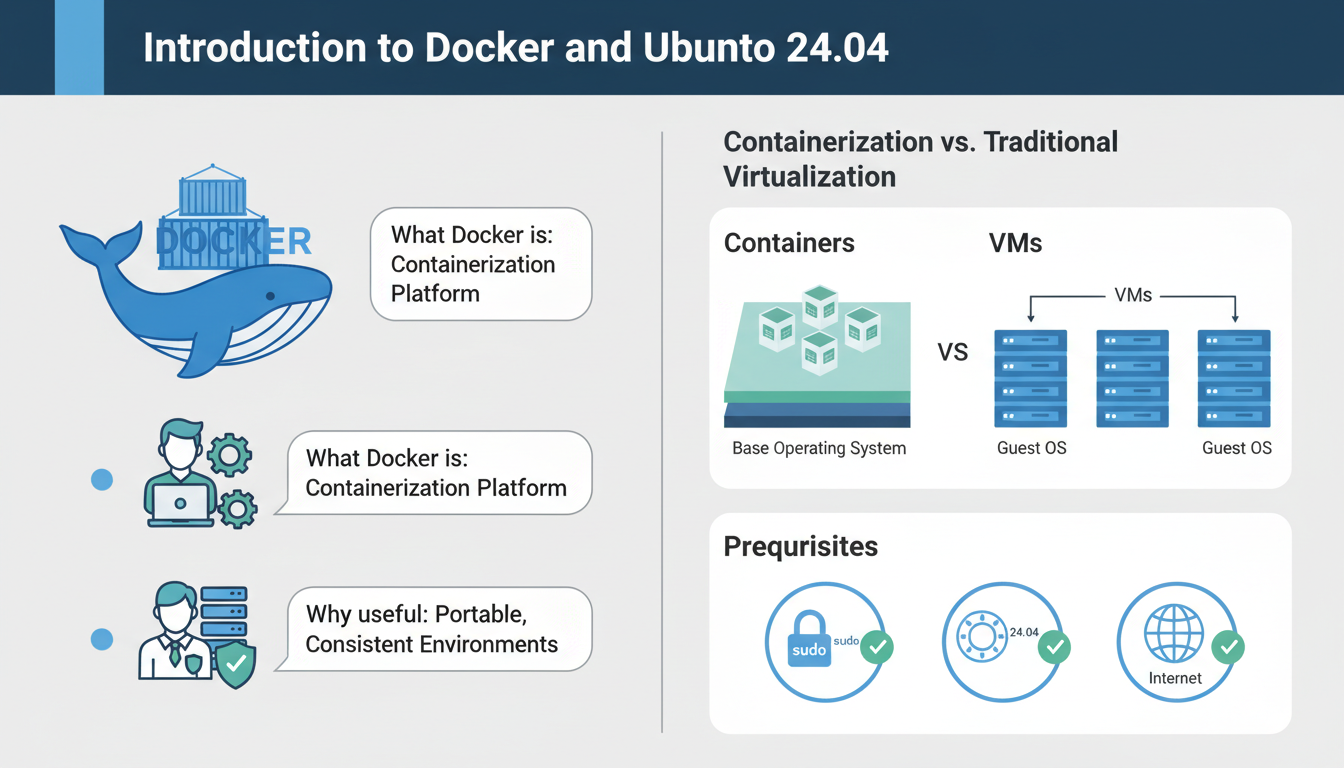
Docker is a powerful open-source platform that simplifies application deployment by packaging software into lightweight, portable containers. For developers and system administrators, Docker eliminates the “it works on my machine” problem by ensuring consistent environments across development, testing, and production. With Docker, you can isolate applications with their dependencies, making it ideal for microservices, CI/CD pipelines, and scalable cloud architectures.
Containerization differs fundamentally from traditional virtualization. While virtual machines (VMs) run a full guest operating system on a hypervisor, consuming gigabytes of disk space and significant CPU/RAM overhead, Docker containers share the host system’s kernel. This makes containers:
- Lightweight – Containers start in seconds and use megabytes, not gigabytes.
- Resource-efficient – Run dozens of containers on a single server without the bloat of VMs.
- Portable – Build once, run anywhere—from your laptop to a cloud cluster.
Before you install Docker on Ubuntu 24.04, ensure the following prerequisites are met:
- Ubuntu 24.04 LTS installed (Noble Numbat).
- Sudo access – You need a user with sudo privileges or root access.
- Internet connection – Required to download Docker packages and repositories.
To check your Ubuntu version, run:
lsb_release -aTo verify you have sudo access:
sudo -vThis guide walks you through the official method to install docker ubuntu 24.04 using the Docker repository, ensuring you get the latest stable release. We’ll cover removing old packages, setting up the repository, installing Docker Engine, and verifying the installation with a simple “hello world” container.
Updating Your System and Checking Prerequisites
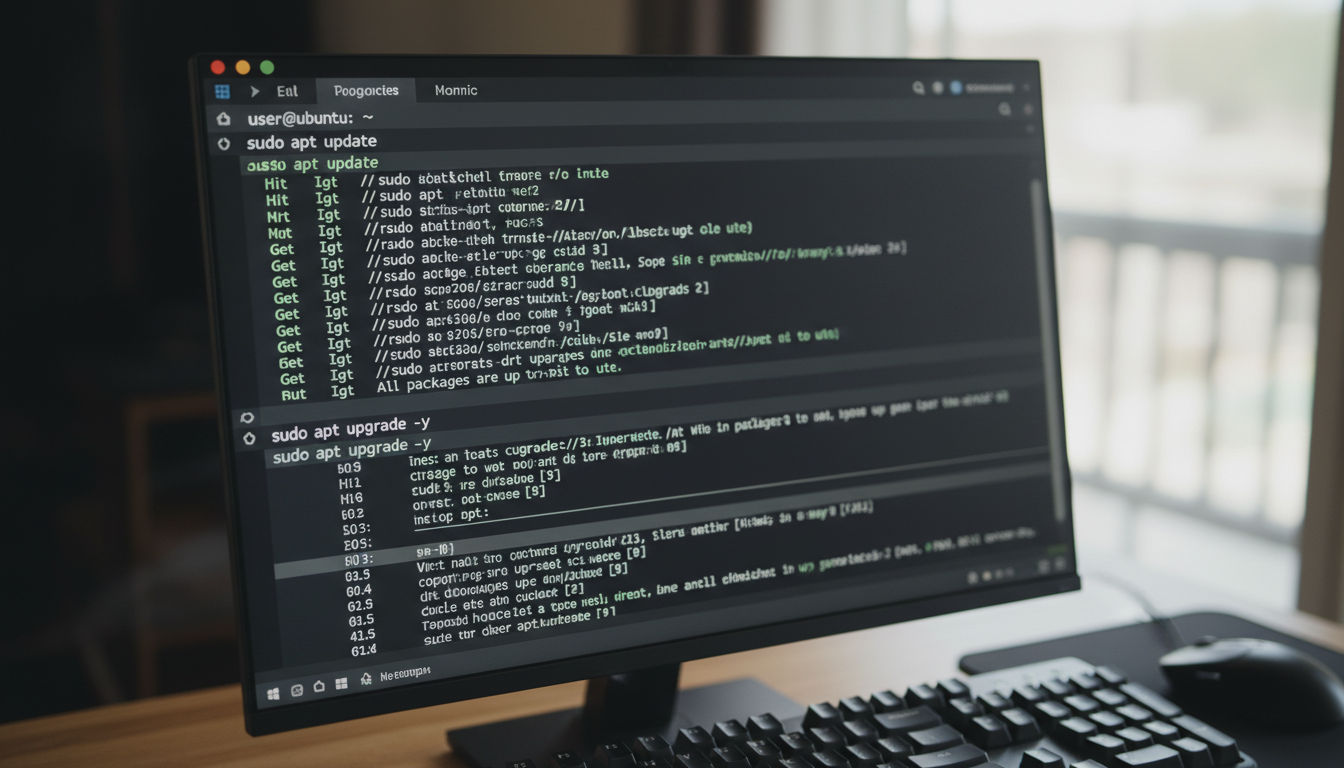
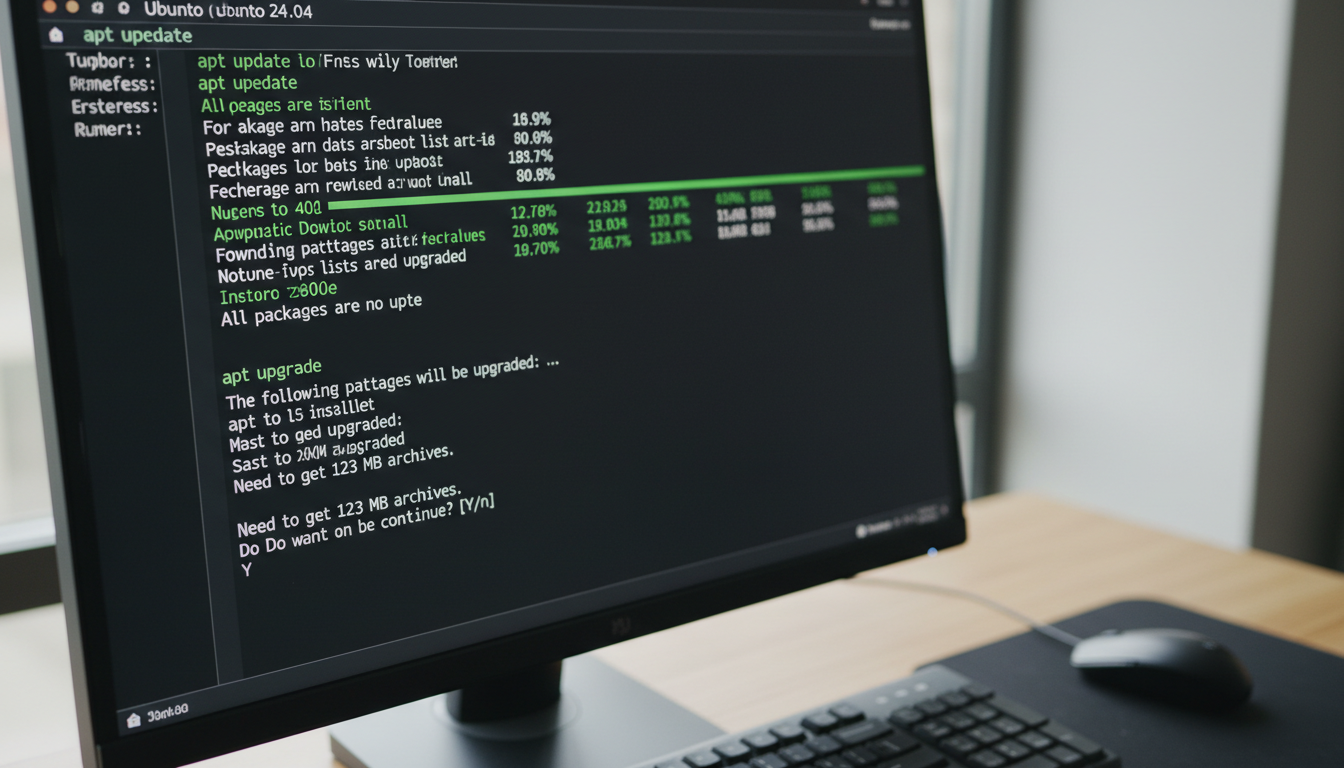
Before you install Docker Ubuntu 24.04, you must ensure your system is fully updated and meets the necessary prerequisites. Start by opening a terminal using the keyboard shortcut Ctrl+Alt+T. This will give you command-line access to your system.
The first step is to refresh your package lists. Run the following command to fetch the latest information about available software from your repositories:
sudo apt updateThis command does not install or upgrade anything, but it updates the index of available packages. Once that completes, you should upgrade all installed packages to their latest versions. The -y flag automatically confirms the upgrade process:
sudo apt upgrade -yWhile this runs, you may see a list of packages that will be upgraded. Allow the process to finish—it typically takes a few minutes depending on your system and internet speed.
Next, verify that you are running Ubuntu 24.04 by checking the release version:
lsb_release -aLook for the “Description” line, which should confirm “Ubuntu 24.04 LTS”. If you see a different version, consider upgrading your OS to ensure compatibility with the latest Docker packages.
Finally, it’s essential to check if any older Docker versions are installed, as they can conflict with the new installation. Remove any outdated Docker packages with:
sudo apt remove docker docker-engine docker.io containerd runc- Note: This command will not remove Docker images, containers, volumes, or configuration files. They will remain in
/var/lib/docker/and can be reused if needed. - Tip: If you want to start completely fresh, you can also delete these directories manually after removal.
Once you have completed these prerequisite steps, your system will be ready for the next phase of the installation process.
Installing Docker Using the Official Repository (Recommended)
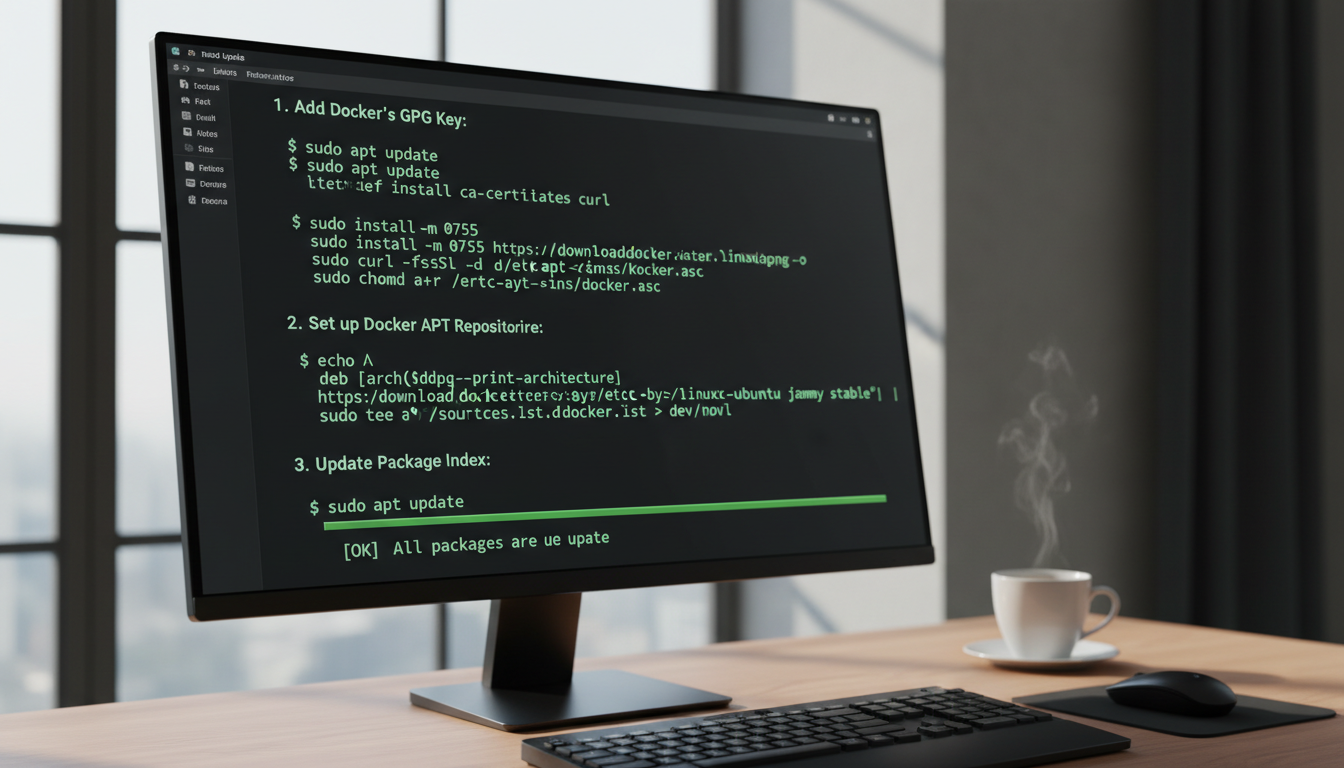
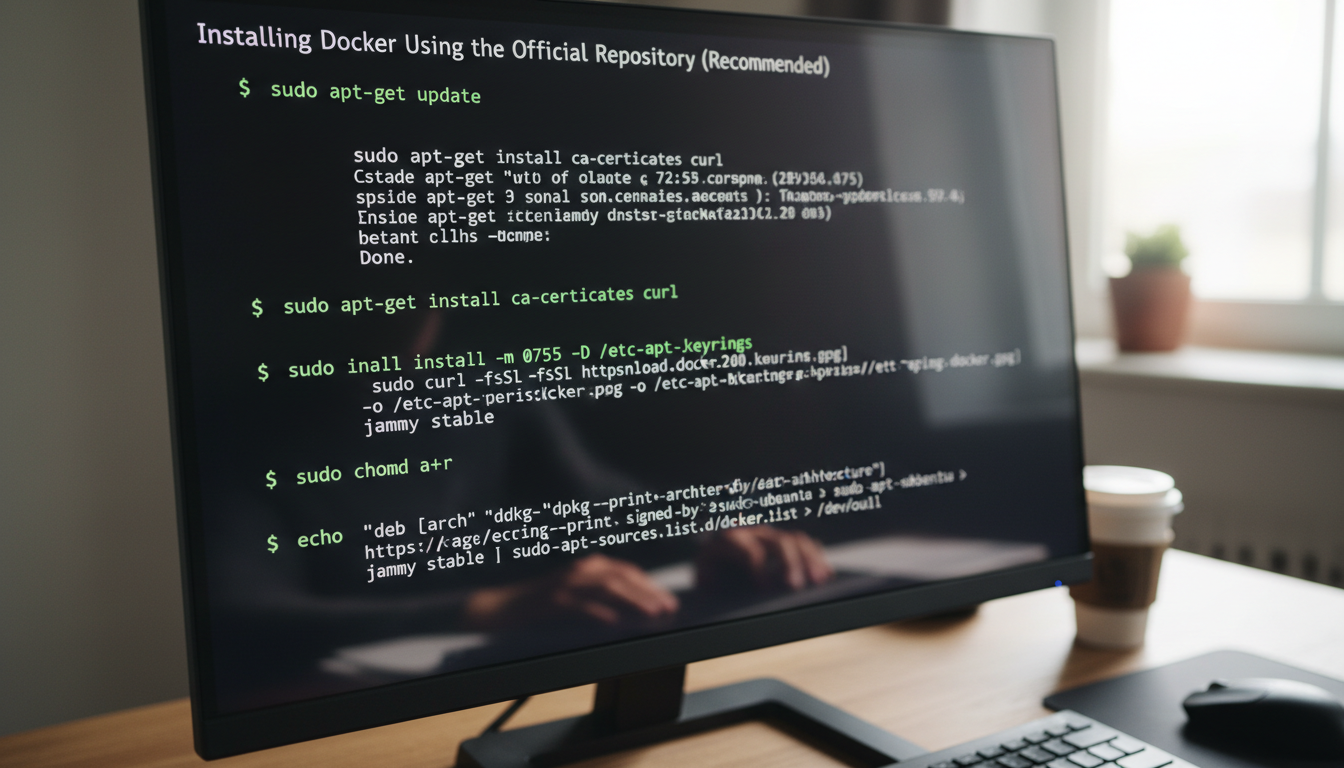
To install Docker Ubuntu 24.04 reliably, using the official Docker repository is the best method. This approach ensures you receive timely security updates and the latest features directly from Docker. Follow these step-by-step instructions:
First, update your existing package list and install prerequisites that allow APT to use packages over HTTPS:
sudo apt update
sudo apt install -y ca-certificates curl
Next, create the keyrings directory and add Docker’s official GPG key to verify package signatures:
sudo install -m 0755 -d /etc/apt/keyrings
sudo curl -fsSL https://download.docker.com/linux/ubuntu/gpg -o /etc/apt/keyrings/docker.asc
sudo chmod a+r /etc/apt/keyrings/docker.asc
Now set up the Docker APT repository for Ubuntu 24.04 (Noble Numbat). This adds the repo to your sources list:
echo \
  "deb [arch=$(dpkg --print-architecture) signed-by=/etc/apt/keyrings/docker.asc] https://download.docker.com/linux/ubuntu \
  $(. /etc/os-release && echo "$VERSION_CODENAME") stable" | \
  sudo tee /etc/apt/sources.list.d/docker.list > /dev/null
After adding the repository, update the package index so APT recognizes the new Docker packages:
sudo apt updateFinally, install Docker Engine, Docker CLI, and containerd using a single command. This installs the complete Docker ecosystem:
sudo apt install -y docker-ce docker-ce-cli containerd.io docker-buildx-plugin docker-compose-pluginOnce installed, verify the installation with:
sudo docker run hello-worldThis downloads a test image and runs it in a container, confirming Docker is working correctly. By following this official repository method, you can install Docker Ubuntu 24.04 with confidence, ensuring a stable and up-to-date setup.
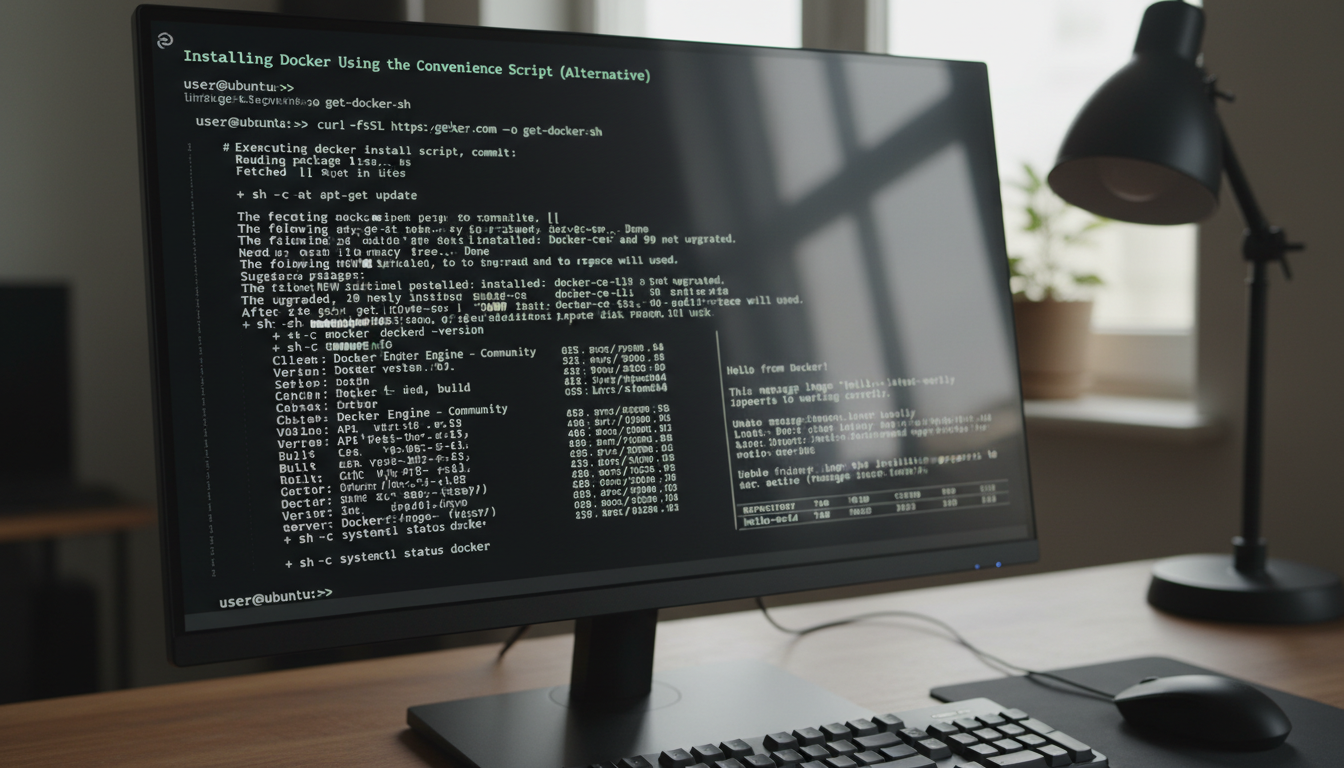
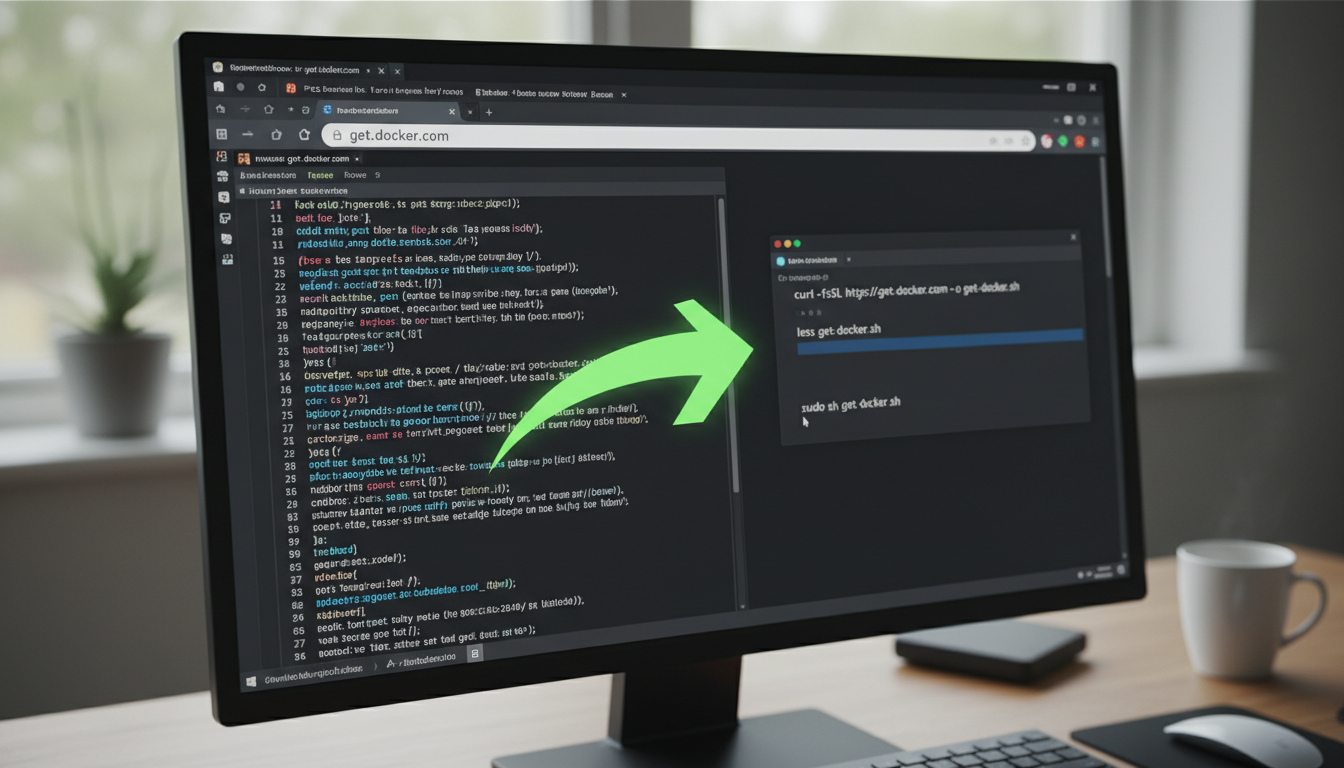
Docker also provides a convenience script that automates the installation process, ideal for testing or development environments where you want a quick setup. This method downloads and runs an official script from Docker’s servers, handling package configuration and dependency resolution automatically.
First, download the script directly from Docker’s official repository using curl or wget. The following command uses curl to fetch get-docker.sh from get.docker.com:
curl -fsSL https://get.docker.com -o get-docker.shBefore executing any downloaded script, always review its contents to verify it is safe and behaves as expected. This is a critical security step, especially for scripts from external sources. Inspect the script with a simple less command or an editor:
less get-docker.shOnce you are confident the script is legitimate, run it with sudo to install Docker Engine, CLI, containerd, and all required dependencies. The entire process is automated—the script detects your Ubuntu 24.04 system, adds the official Docker repository, and installs the latest stable packages.
sudo sh get-docker.shAfter completion, the script will install the following components automatically:
- Docker Engine – the core daemon for running containers
- Docker CLI – command-line tools to manage containers
- containerd – container runtime
- Docker Buildx – extended build capabilities
To verify the installation worked correctly, check the installed version with:
docker --versionThis convenience script is the fastest way to install docker ubuntu 24.04, but keep in mind it is not recommended for production use because it may update system packages without your explicit consent. For more control, use the official repository method described in the previous section.
Starting Docker and Enabling Automatic Startup
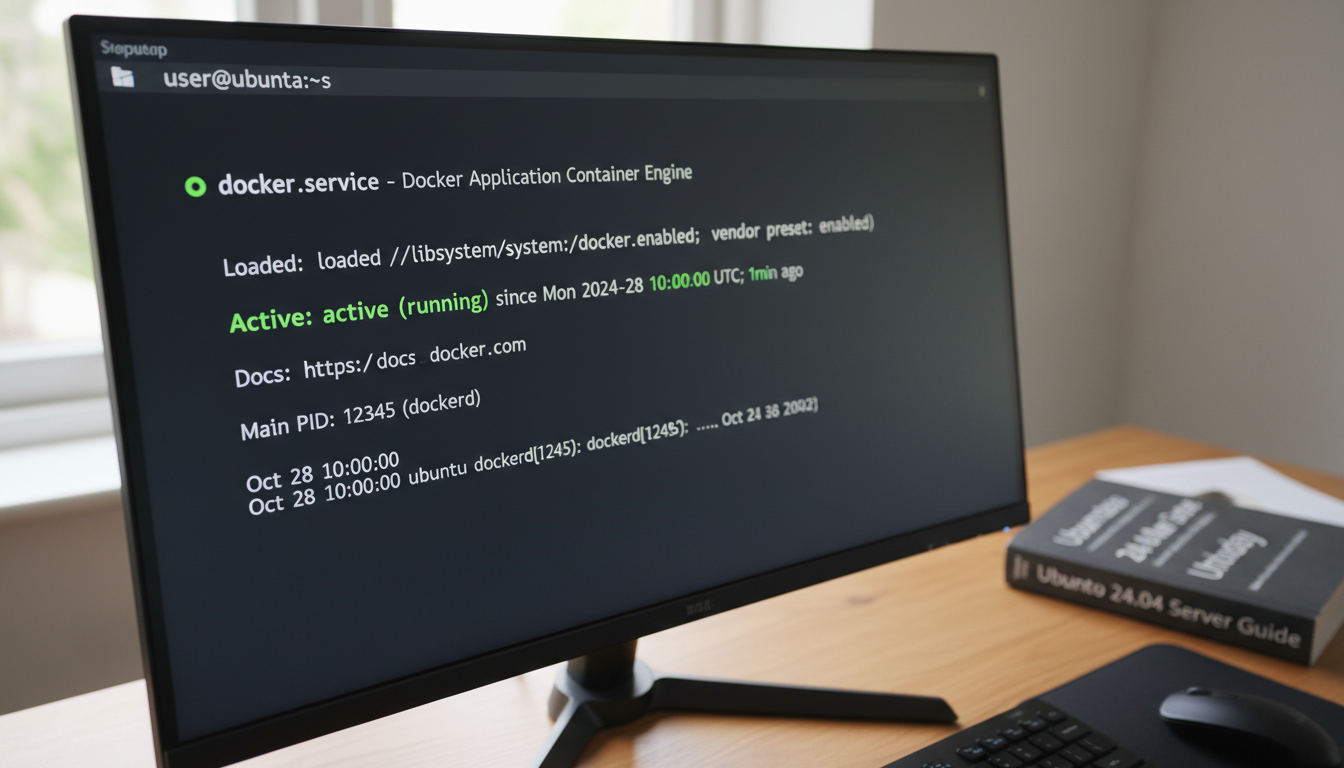
After completing the initial install docker ubuntu 24.04 procedure, the next critical step is to ensure the Docker service is running and configured to start automatically whenever your system boots. This guarantees that your containerized applications are always available without manual intervention.
Begin by starting the Docker daemon. Open your terminal and execute the following command to activate the service immediately:
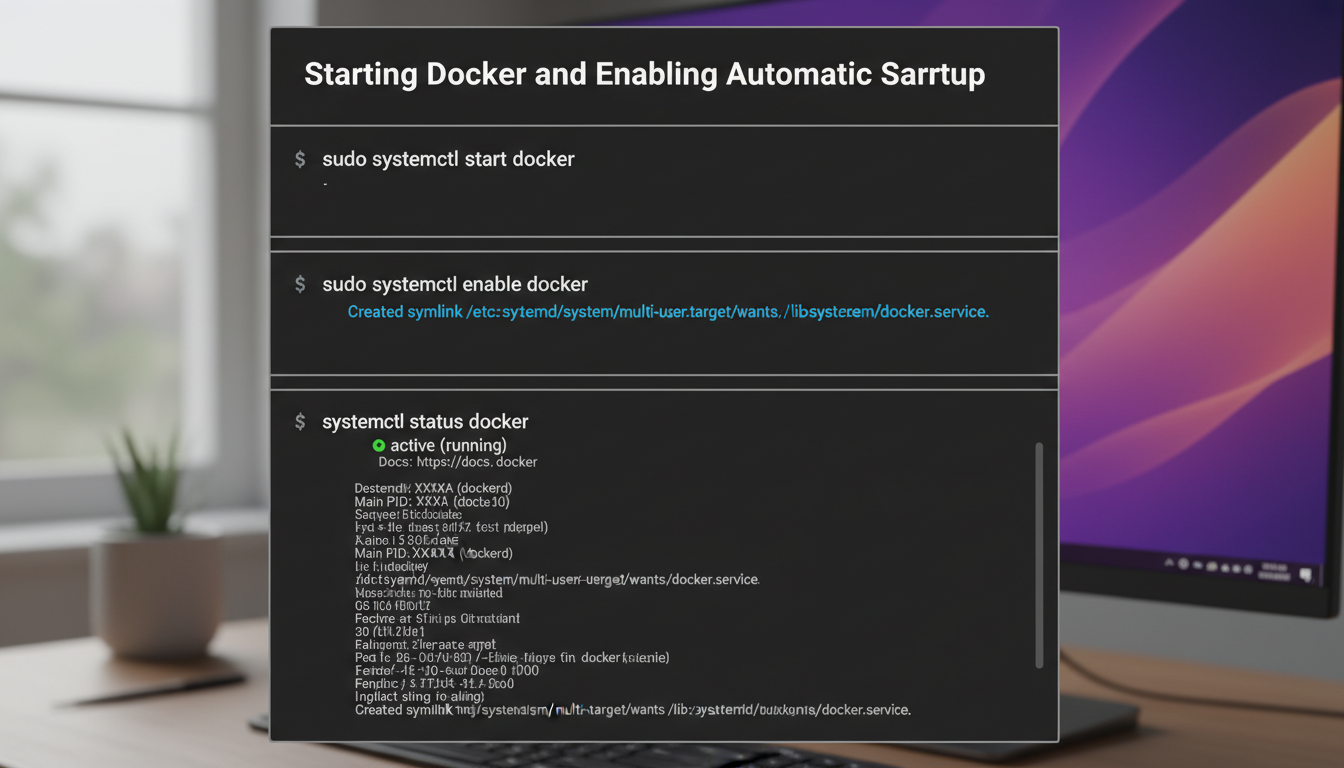
sudo systemctl start dockerOnce Docker is running, you should enable it to launch automatically during system startup. This is essential for production environments where uptime matters. Run this command:
sudo systemctl enable dockerTo verify that the Docker service is active and running correctly, use the status check command. It will display whether the service is active (running) along with recent log entries:
systemctl status dockerIn some cases, you may need to restart Docker after making configuration changes (e.g., modifying the daemon.json file). The restart command is straightforward:
sudo systemctl restart dockerIf you ever need to temporarily stop or disable Docker, the corresponding commands are:
- Stop Docker:
sudo systemctl stop docker - Disable auto-start:
sudo systemctl disable docker
For example, after successfully completing an install docker ubuntu 24.04 setup, you can run sudo systemctl enable docker and then reboot your system. Upon restart, running docker ps will confirm that Docker is operational without needing to start it manually. This ensures seamless container management from boot onwards.
Running Docker Without Sudo (Post-Installation Steps)
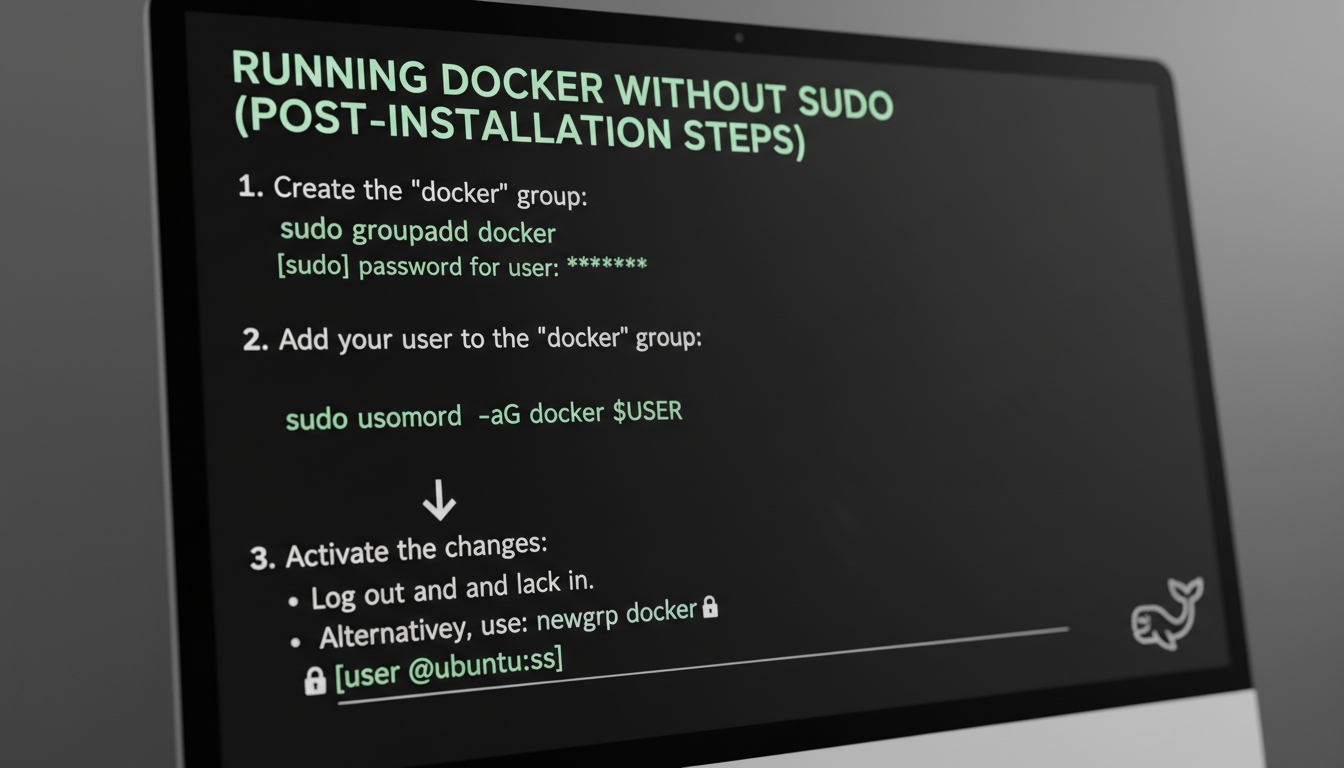

After you install Docker Ubuntu 24.04, every docker command normally requires sudo privileges. This can be tedious and also creates permission issues with mounted volumes. To run Docker commands as a regular user, you need to add your user to the docker group. Follow these post-installation steps carefully.
First, check if the docker group already exists on your system. In most cases, the Docker package creates it automatically during the initial install Docker Ubuntu 24.04 process. If it does not exist, create it manually:
sudo groupadd docker
Next, add your current user to the docker group. Replace $USER with your actual username if needed:
sudo usermod -aG docker $USERThis command appends your user to the group without removing you from any other groups. For the changes to take effect, you must either log out and log back in, or activate the group membership in your current shell session:
- Log out and log back in – The recommended approach for a permanent, system-wide effect.
- Use
newgrp docker– This immediately switches your primary group todockerfor the current terminal session.
To activate the group change without logging out, run:
newgrp docker
Now verify that everything works correctly by running a test container without sudo:
docker run hello-world
If you see the “Hello from Docker!” message, your setup is complete. You can now manage containers, images, and volumes as a regular user. Remember that adding a user to the docker group grants them effective root-level access to the Docker daemon—only do this for trusted users. After you install Docker Ubuntu 24.04, this post-installation step is essential for a smooth, sudo-free workflow.
Verifying Docker Installation with Hello World
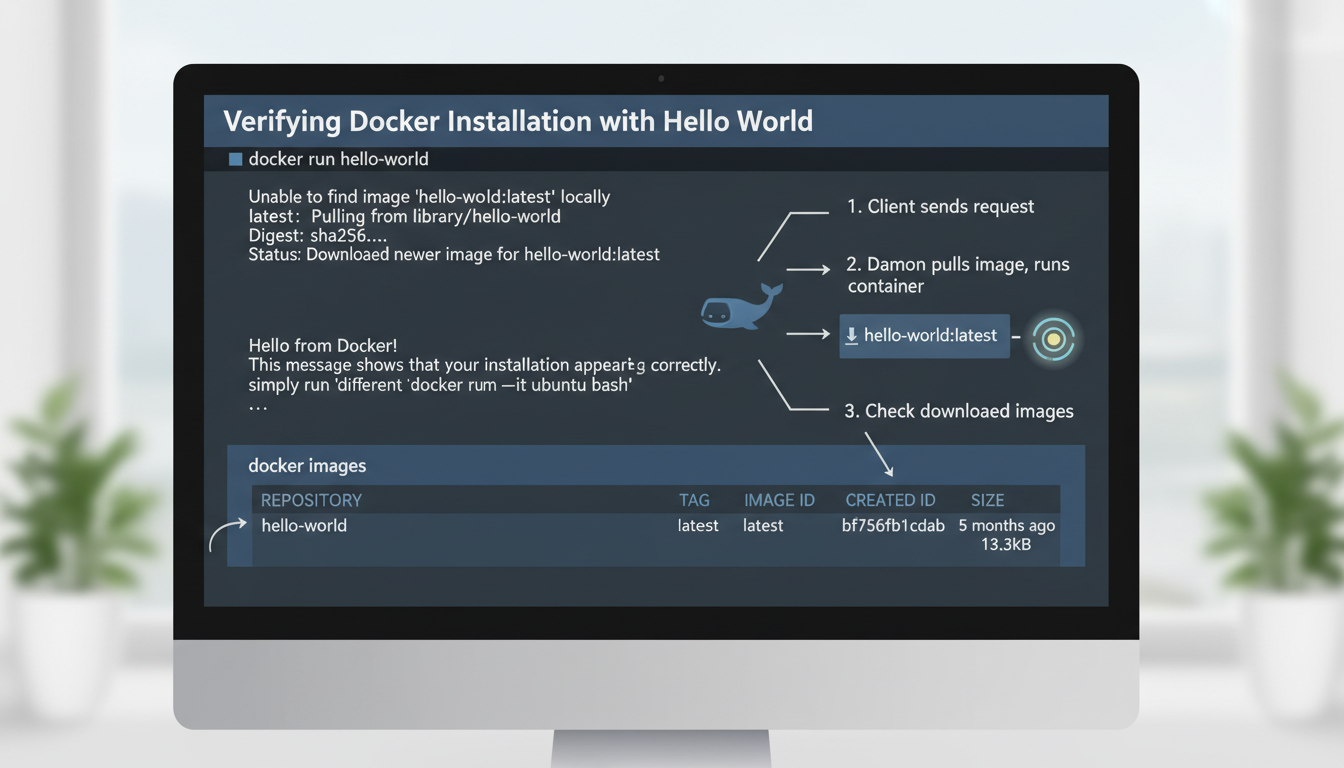
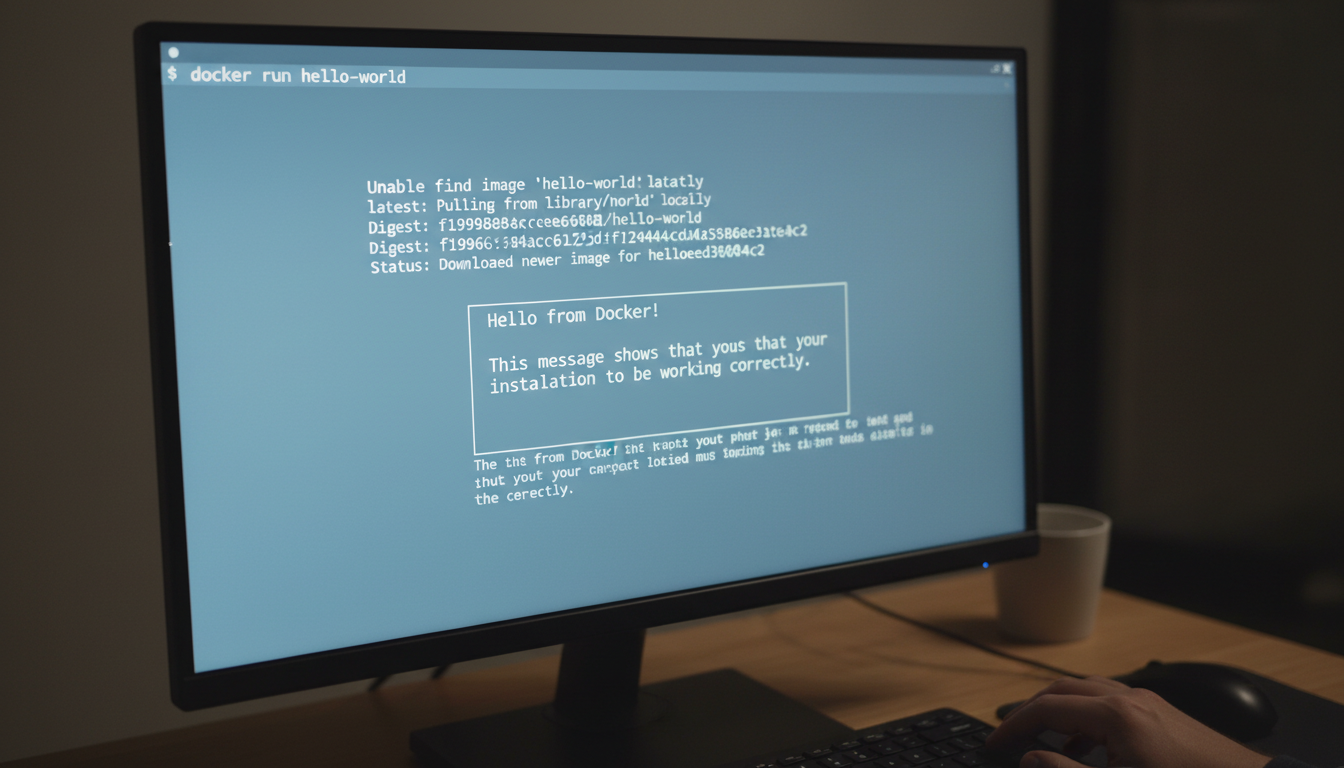
After completing the steps to install Docker Ubuntu 24.04, verifying that the installation works correctly is essential. The simplest way to test your Docker setup is by running the hello-world container. This lightweight image confirms that Docker can pull images from the registry, create containers, and execute commands without errors.
Execute the following command in your terminal:
docker run hello-worldUnderstanding the output is important for diagnosing issues. Here’s what happens step by step:
- The Docker client sends a request to the Docker daemon to run the
hello-worldcontainer. - The daemon checks if the image exists locally; if not, it pulls the
hello-worldimage from Docker Hub (the default registry). - The daemon then runs the container, which prints a welcome message, confirms your installation works, and exits.
If you see the “Hello from Docker!” message with Docker’s explanation of what just happened, your installation is successful.
After the test, you can inspect what Docker downloaded by listing local images:
docker imagesThis displays the hello-world image in your repository. You can also check containers that have run. To see running containers (likely none at this point):
docker psTo list all containers, including those that have exited:
docker ps -aHere you’ll find the hello-world container with a STATUS of “Exited (0)” — indicating it ran successfully and terminated cleanly. This simple workflow confirms that Docker’s client-server architecture works, images can be downloaded, and containers execute as expected. With this verification, you’re ready to move on to more advanced container operations.
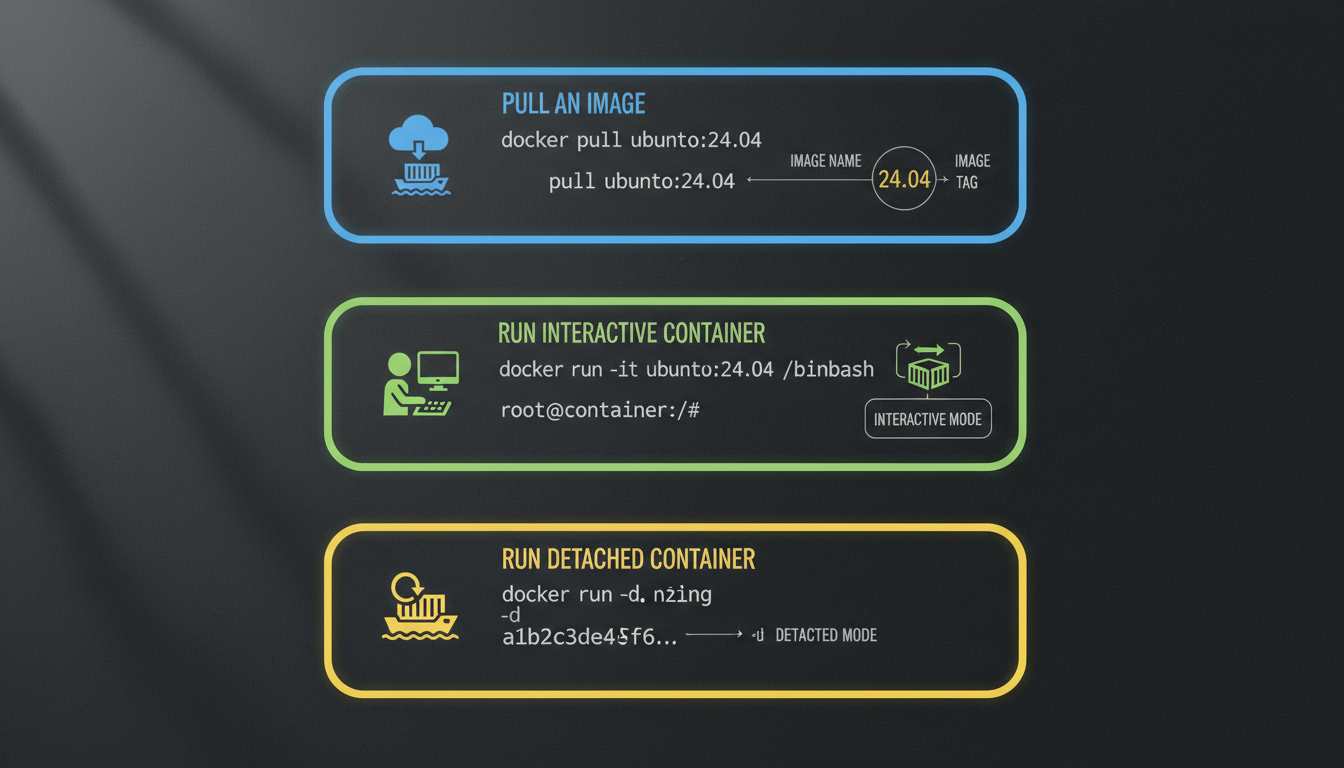
Once you have successfully completed the install docker ubuntu 24.04 process, you need to master several essential commands to manage containers effectively. The first step is pulling an image from Docker Hub. For example, you can download the official Ubuntu 24.04 image using:
docker pull ubuntu:24.04The tag 24.04 specifies the exact version. Omitting the tag defaults to latest, which may point to a different release. To run an interactive container where you can execute commands inside the environment, use:
docker run -it ubuntu:24.04 /bin/bashThis command creates a new container and opens a Bash shell. When you exit the shell, the container stops. For long-running services like web servers, you typically want a detached container that runs in the background:
docker run -d nginxThe -d flag runs the container in detached mode, printing the container ID. To see all running containers and their status, use:
docker psThis command shows container IDs, names, images, ports, and uptime. To view stopped containers as well, add the -a flag:
docker ps -a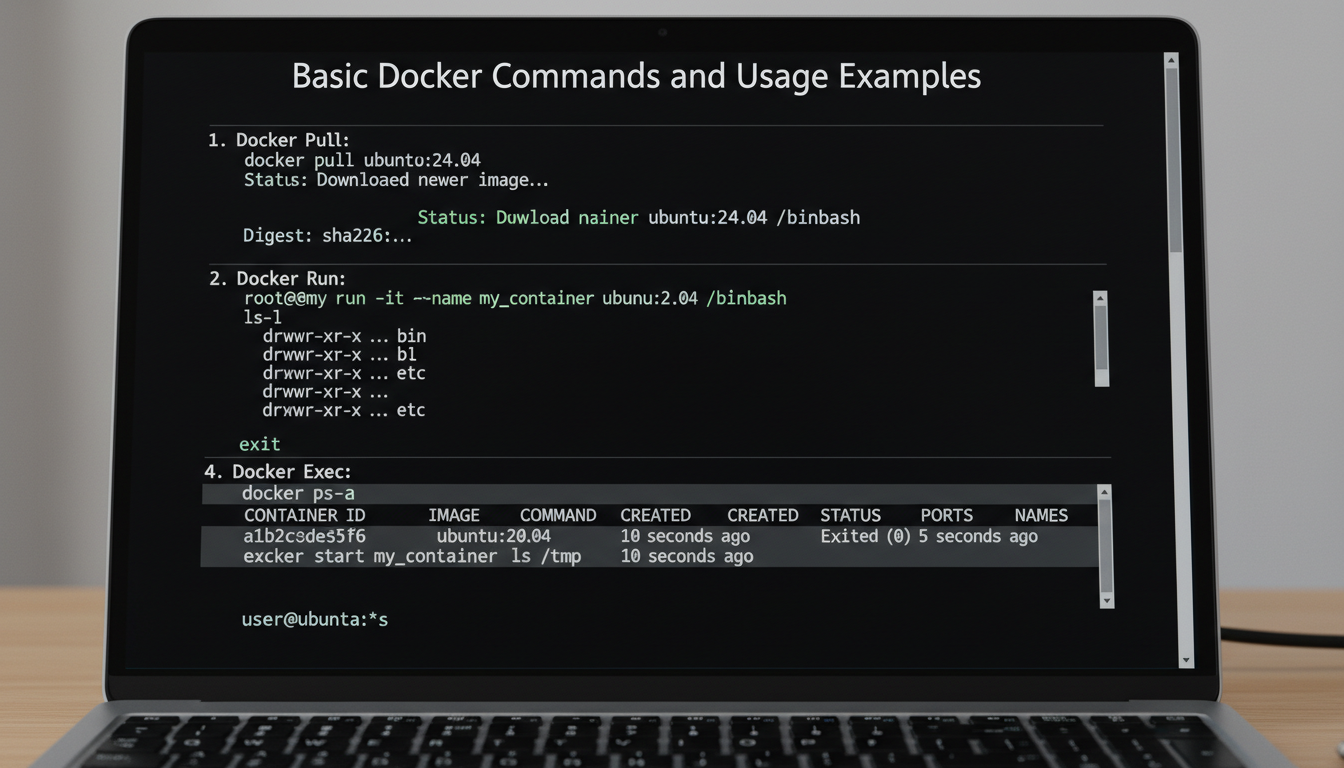
Additional practical tips include checking image layers with docker history, inspecting container details with docker inspect, and cleaning up unused images with docker image prune. Mastering these commands will give you full control over your Docker environment after the initial install docker ubuntu 24.04 setup.
Troubleshooting Common Installation Issues
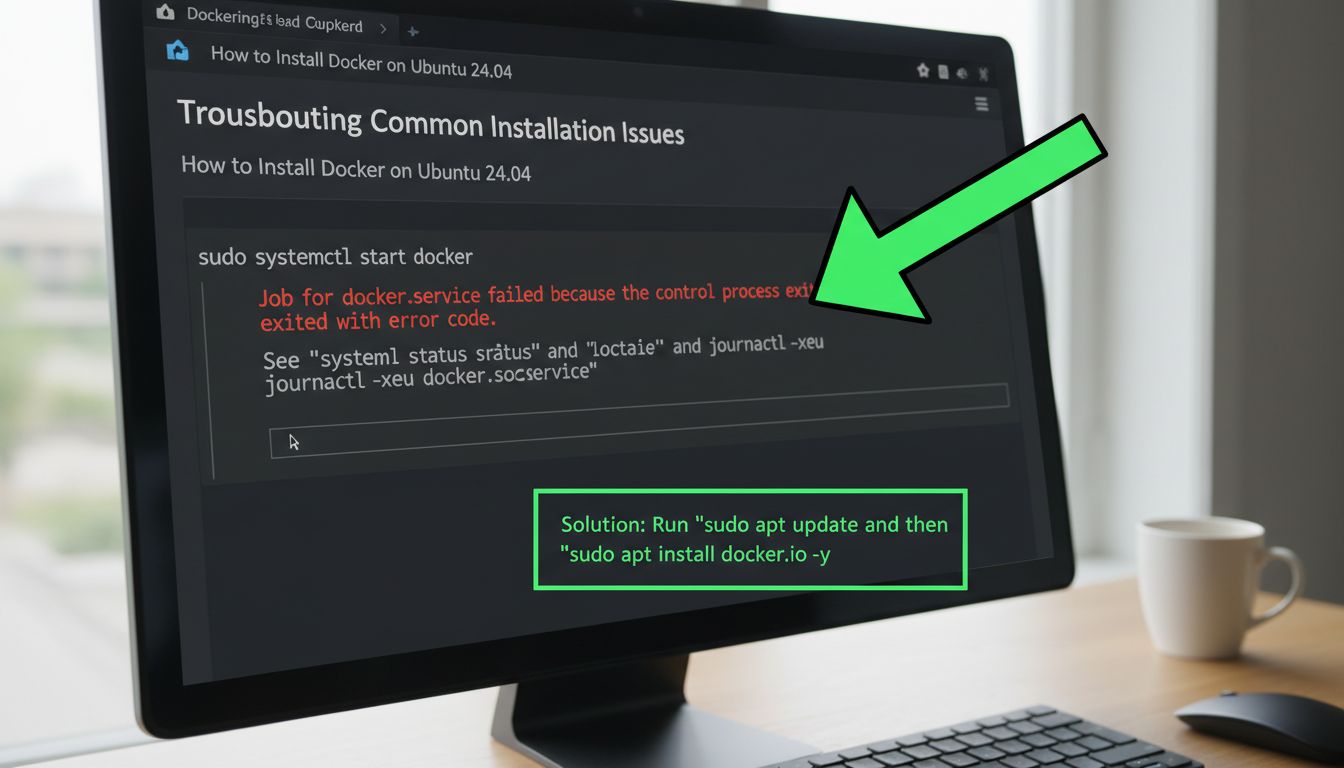
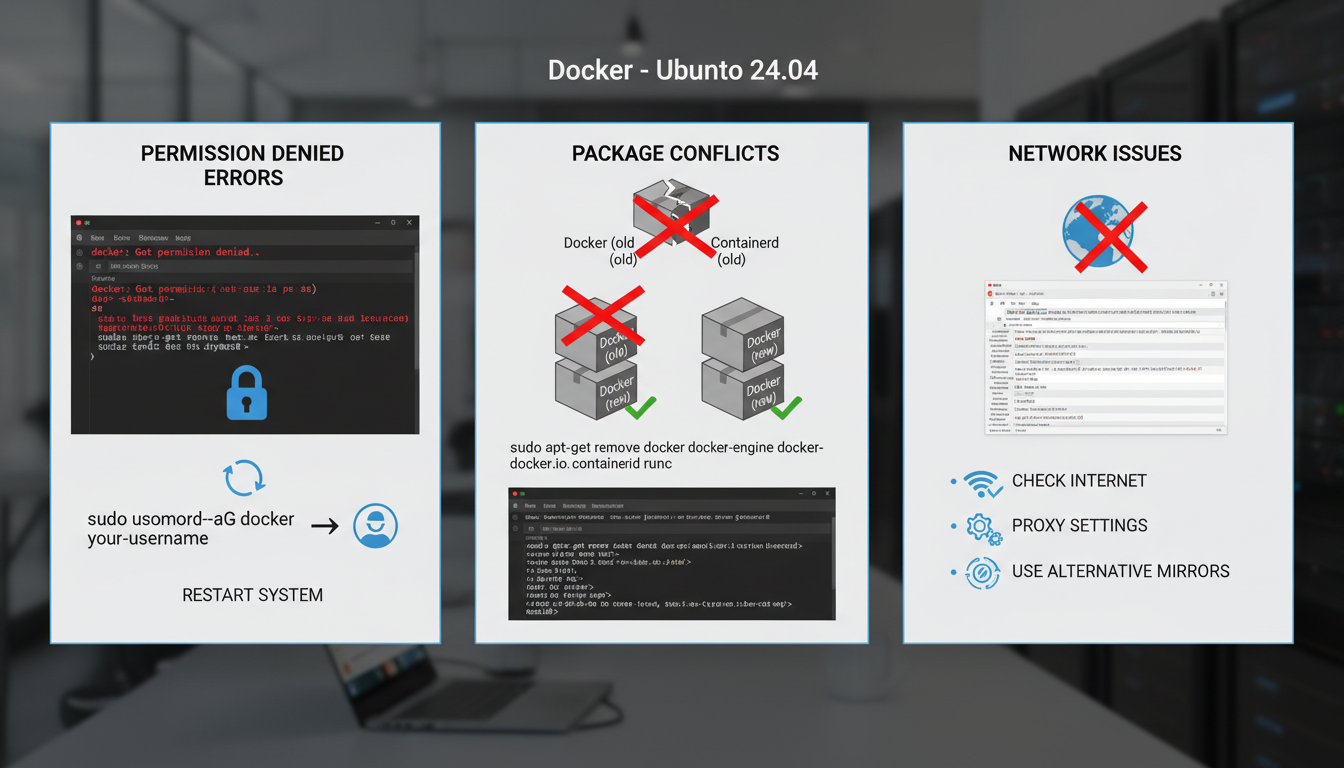
When you install docker ubuntu 24.04, you may encounter several common problems. The most frequent issue is the Permission denied error when running Docker commands without sudo. This happens because your user is not in the docker group. Fix it by adding your user to the group and then restarting your session:
sudo usermod -aG docker $USER
newgrp docker
If you still get errors after this, log out and back in completely.
Package conflicts often arise if old Docker versions or containerd packages are already installed. Remove conflicting packages before attempting a fresh install:
sudo apt remove docker docker-engine docker.io containerd runc
sudo apt autoremove
Network issues can prevent Docker from downloading packages. Check your internet connection and proxy settings. If behind a corporate proxy, configure Docker to use it:
sudo mkdir -p /etc/systemd/system/docker.service.d
sudo tee /etc/systemd/system/docker.service.d/proxy.conf <
Alternatively, use a different mirror if the default repositories are slow:
sudo nano /etc/docker/daemon.json
# Add: { "registry-mirrors": ["https://mirror.gcr.io"] }
Finally, kernel compatibility issues can occur if your kernel lacks necessary modules. Ensure your system is updated:
sudo apt update && sudo apt upgrade -y
sudo reboot
To verify the installation after fixing issues:
sudo docker run hello-world- Permission denied: Add user to docker group and restart session
- Package conflicts: Remove old Docker packages thoroughly
- Network issues: Configure proxy or change registry mirrors
- Kernel problems: Update system and reboot
Step-by-Step Tutorial
Step 1: Update System Packages
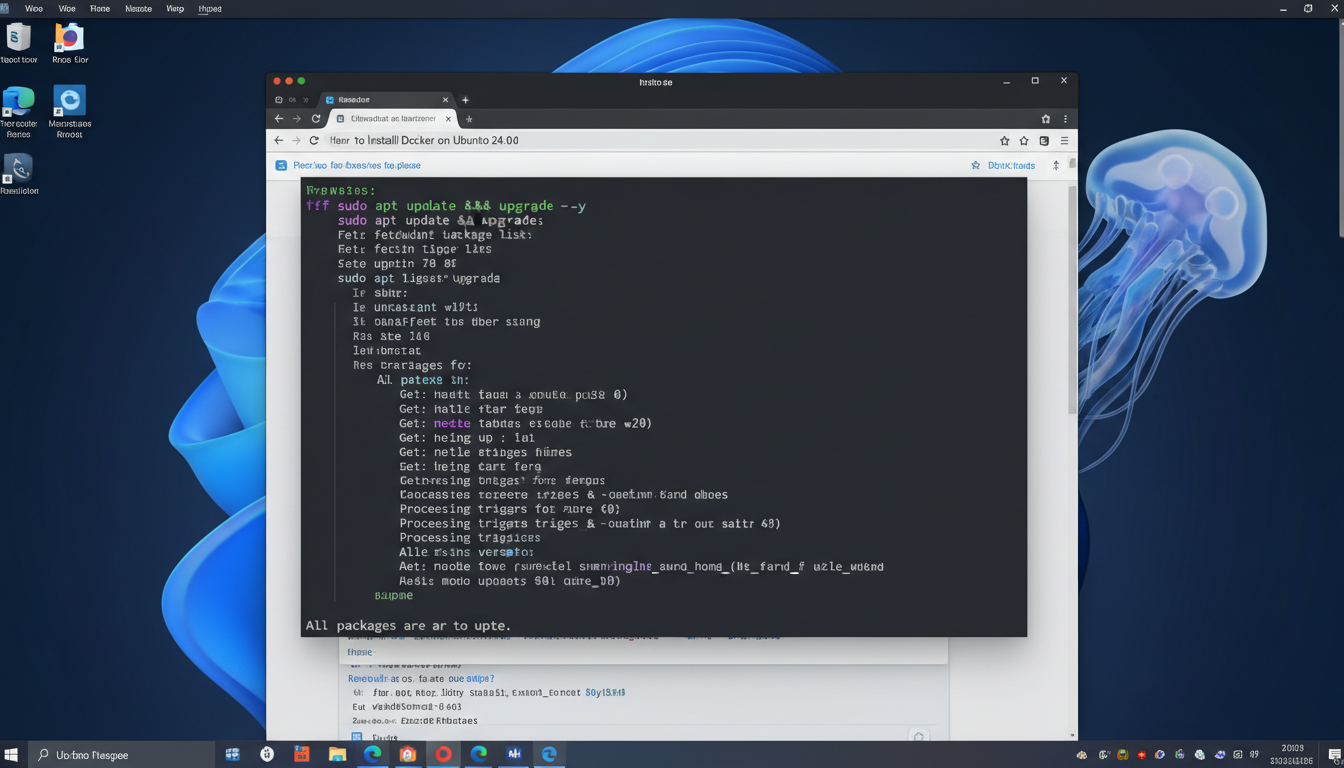
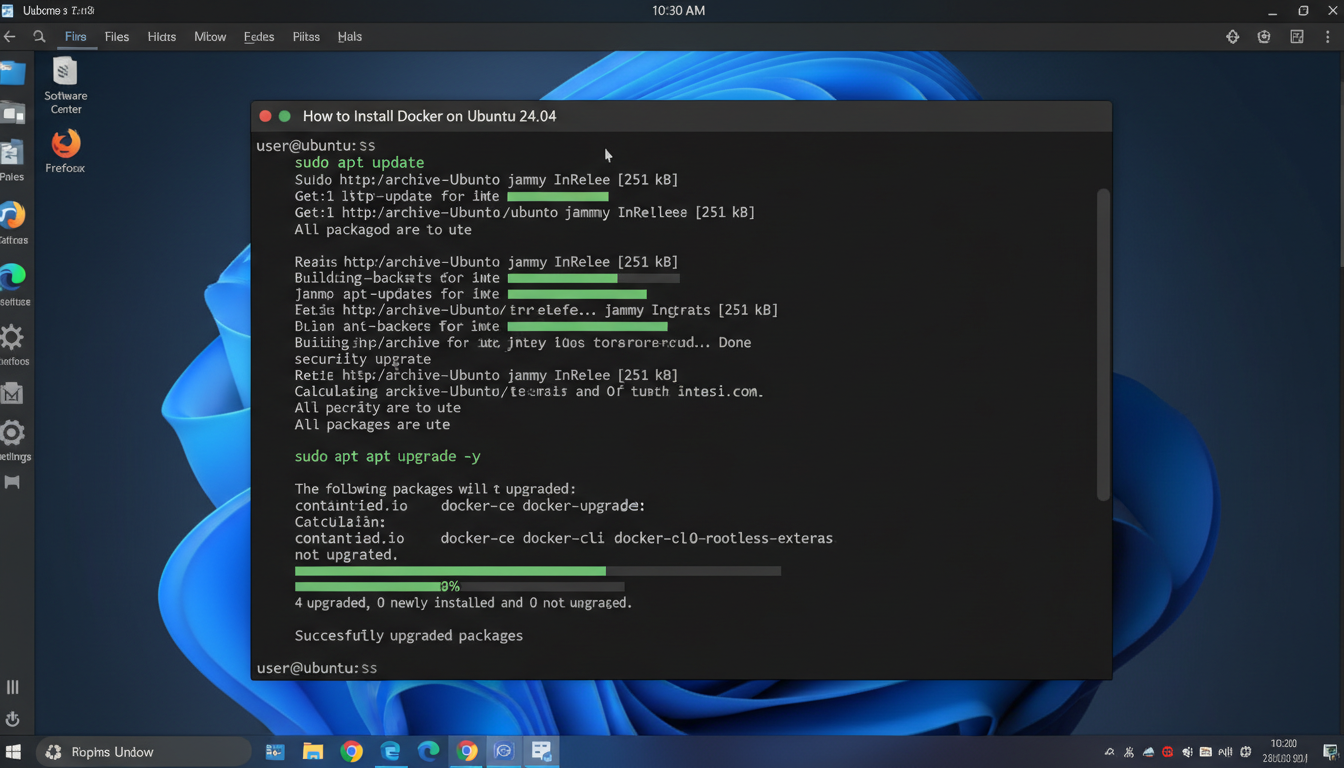
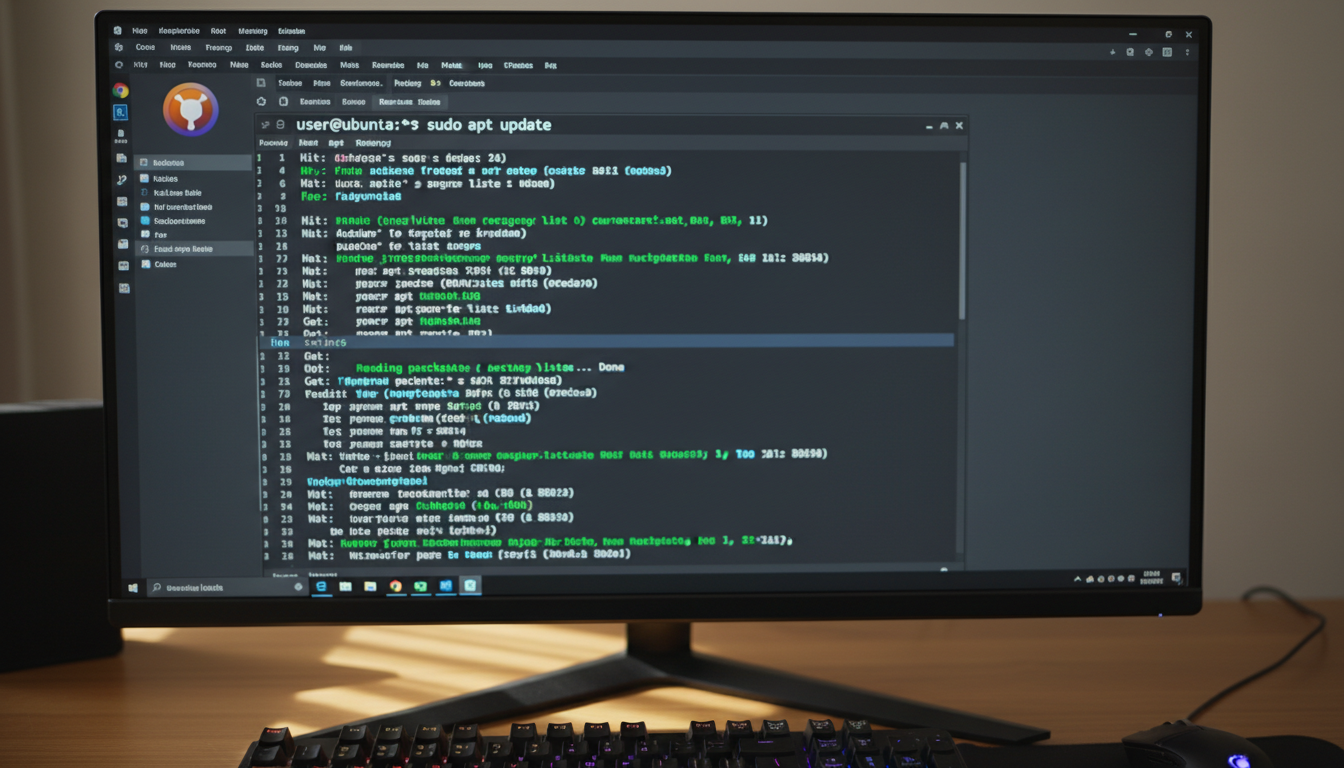
Before installing Docker, it's essential to ensure your Ubuntu 24.04 system has the latest package information and all existing software is up to date. This reduces compatibility issues and ensures you have the most recent security patches.
-
Refresh the package index
Open a terminal and run the following command to update the list of available packages and their versions from the repositories:sudo apt updateYou should see output showing the package lists are being downloaded and processed. The command completes without errors when you see a message like "Reading package lists... Done".
-
Preview pending upgrades (optional but recommended)
Before upgrading, check which packages will be updated:apt list --upgradableThis lists all packages that have newer versions available. Review the list to understand what will change.
-
Upgrade all installed packages
Run the upgrade command to install the latest versions of all packages:sudo apt upgrade -yThe
-yflag automatically answers "yes" to prompts. The process downloads and installs updates. You'll see progress indicators and a final summary of upgraded packages. The command should complete without errors.Note: Upgrading may take several minutes depending on your system speed and internet connection. Ensure you have a stable internet connection throughout the process.
-
Reboot if kernel was updated
If the upgrade included Linux kernel packages, a reboot is recommended to ensure the new kernel takes effect. You can check if a reboot is needed with:sudo rebootWarning: If kernel packages were upgraded, you must reboot before proceeding with Docker installation. Running Docker on an old kernel can lead to compatibility issues.
After completing these steps, your system is ready for Docker installation. The upgrade process ensures you have the latest libraries and dependencies that Docker requires.
Step 2: Install Prerequisites
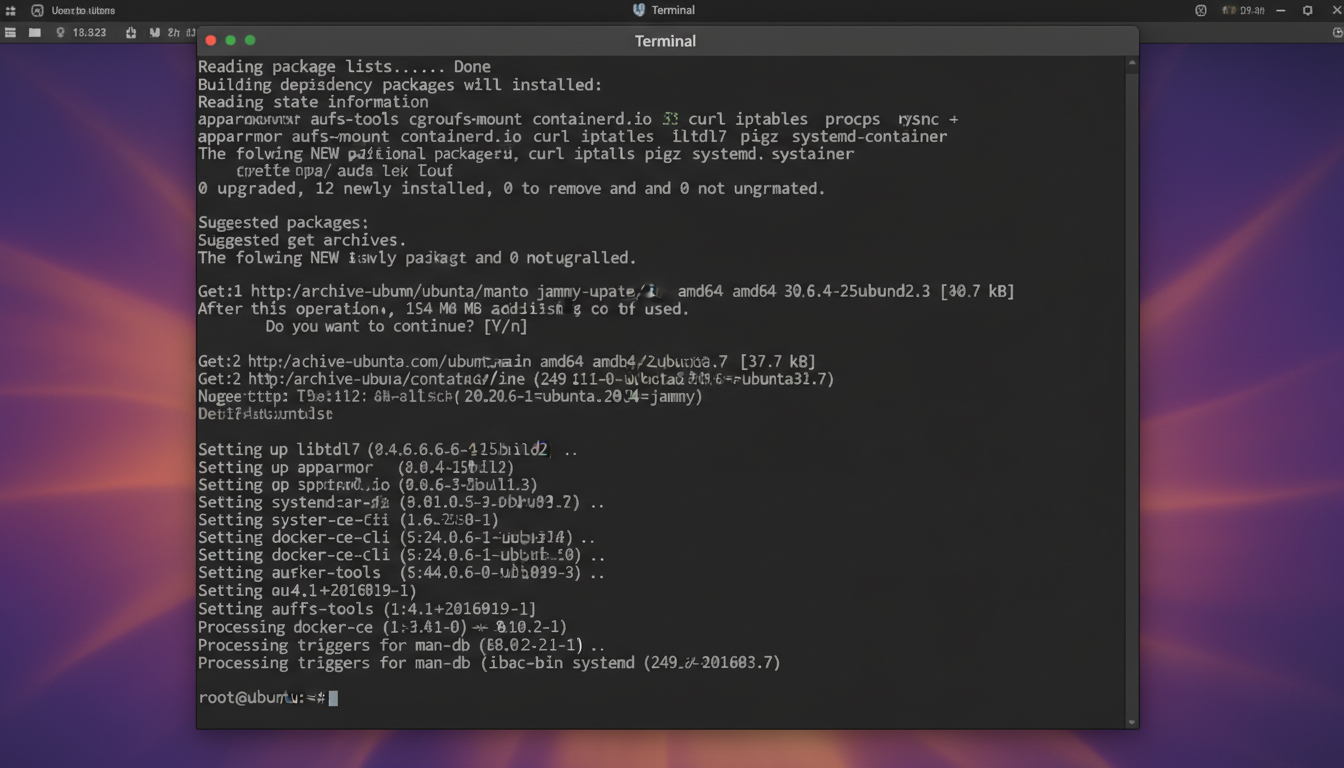
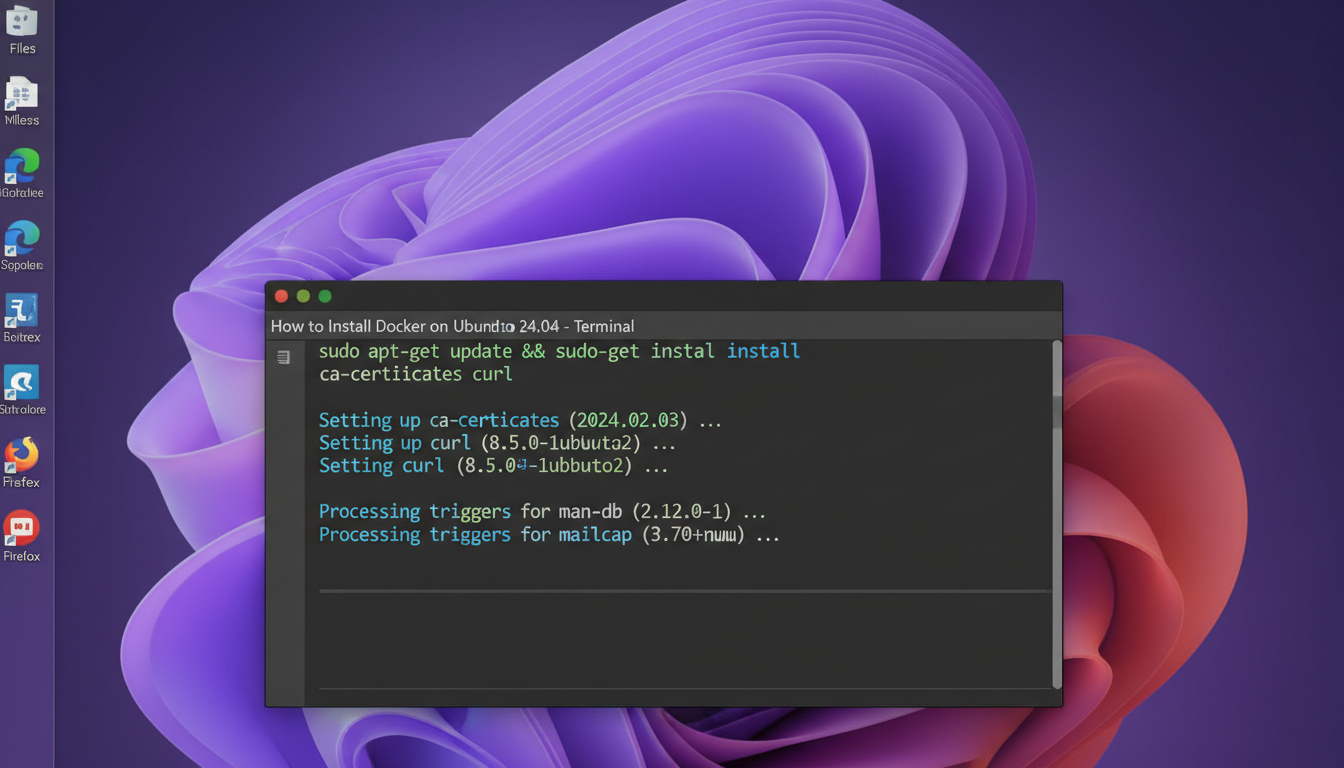
Before adding the official Docker repository, you must install several prerequisite packages. These packages enable secure HTTPS connections to the repository and provide necessary tools for package management.
-
Update your package index
First, ensure your system's package list is up-to-date:sudo apt update -
Install the prerequisite packages
Run the following command to install all required packages at once:sudo apt install -y apt-transport-https ca-certificates curl software-properties-commonThe
-yflag automatically confirms the installation. During the process, you should see output lines likeSetting up apt-transport-https ...,Setting up ca-certificates ...,Setting up curl ..., andSetting up software-properties-common ...— these indicate each package is being installed successfully. -
Verify curl is already installed (optional but recommended)
Although curl is included in the previous command, confirm it exists with:which curlIf this returns a path like
/usr/bin/curl, curl is available. If nothing is returned, runsudo apt install -y curlseparately. -
Verify all packages were installed
After installation completes, verify each package is present:apt list --installed 2>/dev/null | grep -E "apt-transport-https|ca-certificates|curl|software-properties-common"This should list all four packages with their version numbers, confirming successful installation. If any package is missing, repeat step 2.
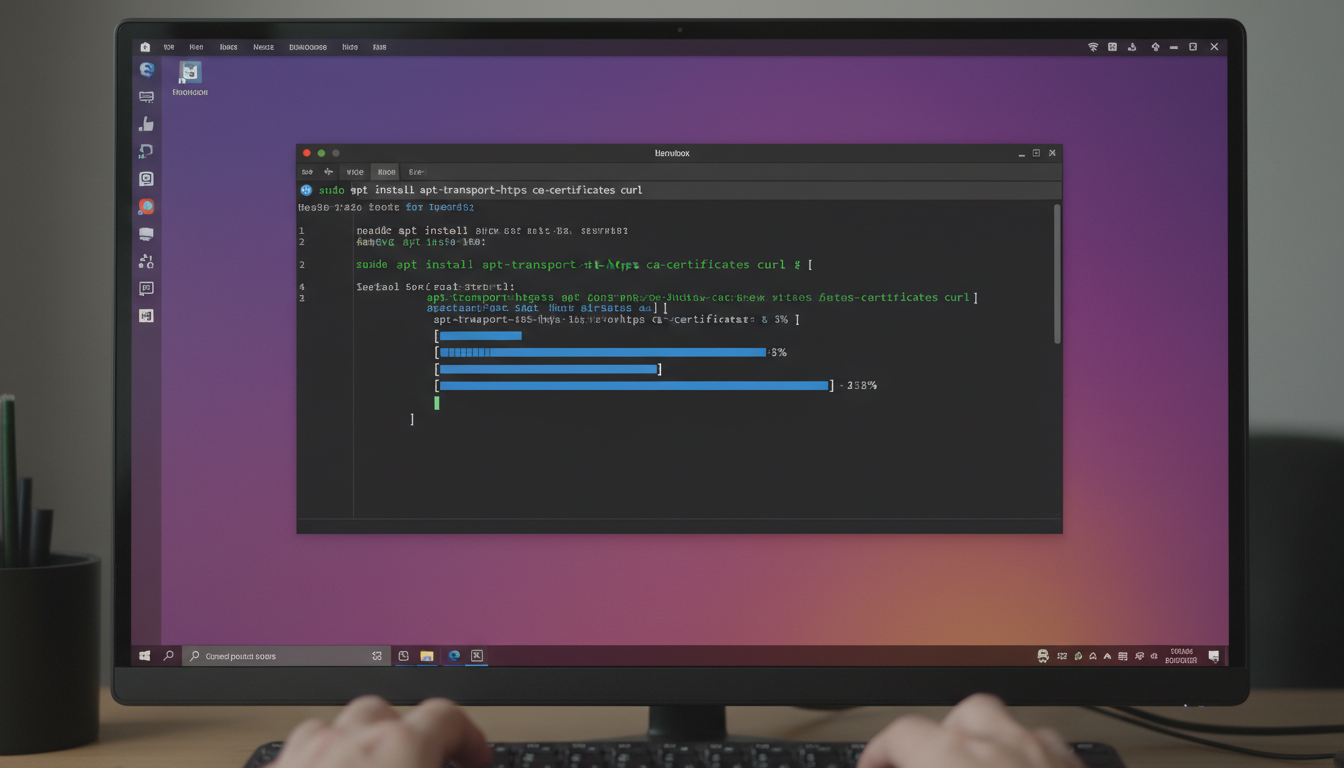
Important: Do not skip any of the listed packages. Each serves a specific purpose: apt-transport-https allows APT to use HTTPS repositories, ca-certificates provides SSL certificate verification, curl is used for downloading files via HTTPS, and software-properties-common adds the add-apt-repository command used in the next step.
Successfully completing this guide means you have now installed Docker on Ubuntu 24.04, a critical step for modern software development and deployment. The process began with updating system packages, then adding Docker’s official repository to ensure you receive the latest stable releases. Installing the essential packages—docker-ce, docker-ce-cli, and containerd.io—provided the core runtime and command-line tools. After verifying the installation runs smoothly with the hello-world container, you added your user to the docker group to avoid requiring sudo for every command, streamlining your workflow. By choosing to install Docker on Ubuntu 24.04 via its official repository, you gain reliable updates, strong security patches, and full compatibility with this LTS release. The key benefits include faster application delivery, consistent environments across development and production, and efficient resource utilization through containerization.
Now that Docker is operational, consider exploring next steps: enable Docker to start on boot with systemctl enable docker, pull and run popular images like Nginx or PostgreSQL, or learn Docker Compose to manage multi-container applications. Mastering container orchestration tools such as Kubernetes or Docker Swarm will further scale your deployments. Whether you are a developer, system administrator, or DevOps engineer, this foundation enables you to package applications with dependencies, isolate services, and automate pipelines. Docker’s ecosystem opens doors to microservices, CI/CD practices, and cloud-native development. By learning to install Docker on Ubuntu 24.04 today, you have taken a practical step toward modern, portable, and scalable infrastructure.
Frequently Asked Questions
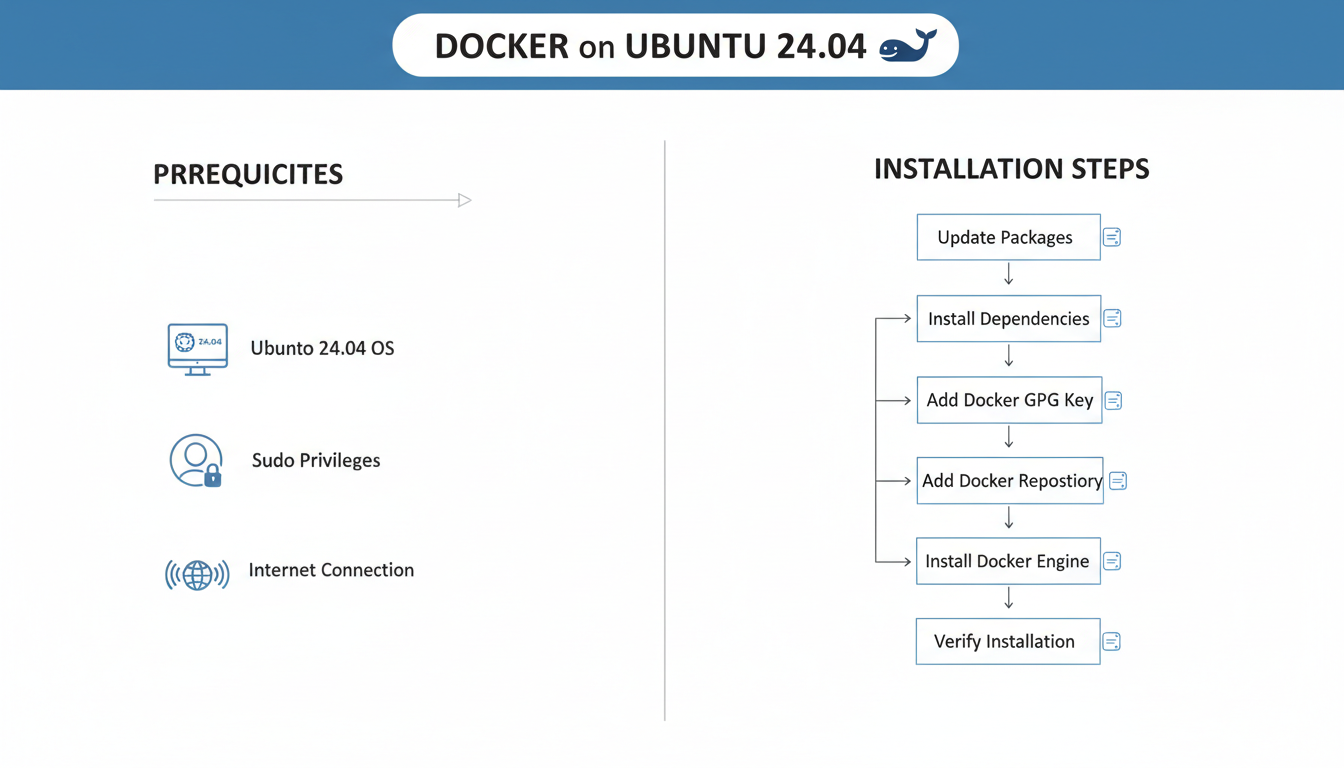
What are the prerequisites for installing Docker on Ubuntu 24.04?
Before installing Docker on Ubuntu 24.04, ensure your system is updated. Run sudo apt update && sudo apt upgrade -y. You need a user account with sudo privileges. Remove any old Docker versions with sudo apt remove docker docker-engine docker.io containerd runc. Install prerequisite packages: sudo apt install ca-certificates curl gnupg lsb-release. These tools add the official Docker repository and GPG key securely. A 64-bit installation of Ubuntu 24.04 and at least 2GB RAM are recommended for smooth operation.
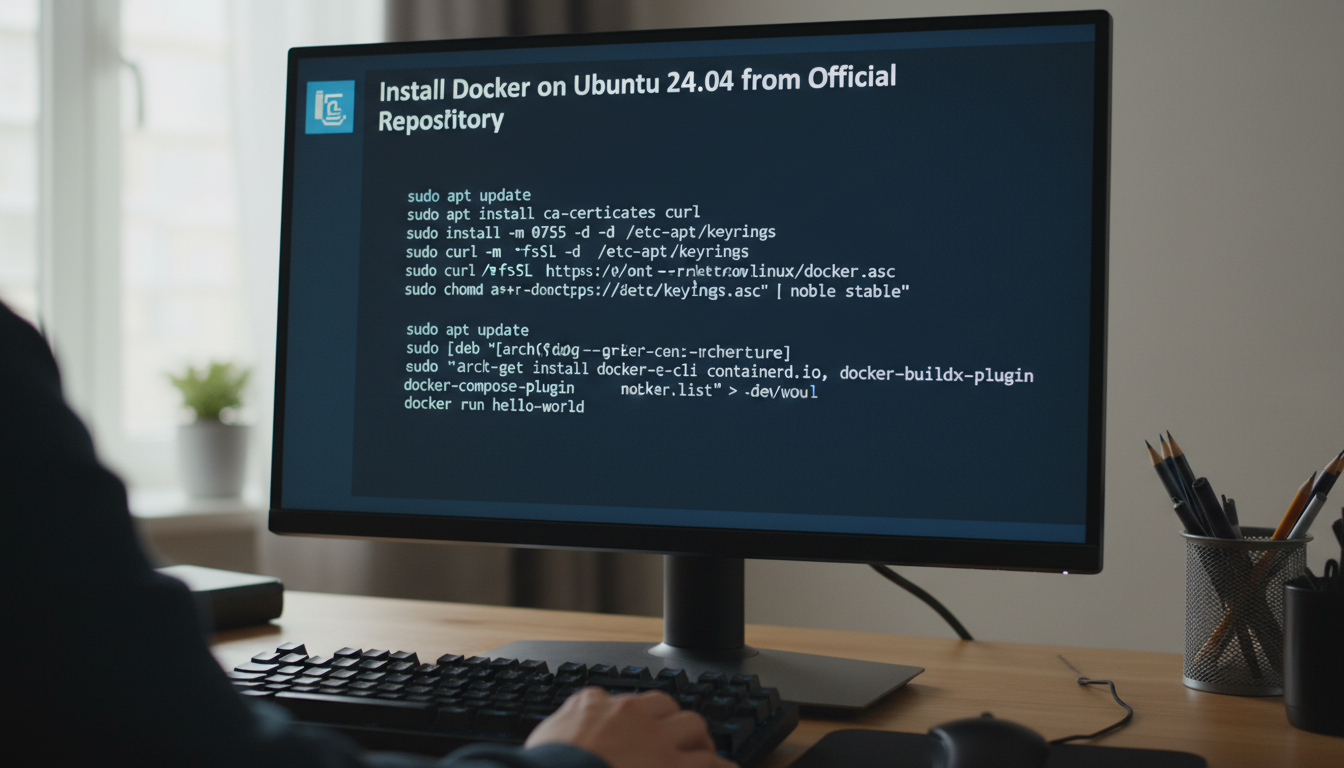
How to install Docker using the official repository?
First, add Docker's official GPG key: sudo curl -fsSL https://download.docker.com/linux/ubuntu/gpg | sudo gpg --dearmor -o /usr/share/keyrings/docker-archive-keyring.gpg. Then add the repository: echo "deb [arch=$(dpkg --print-architecture) signed-by=/usr/share/keyrings/docker-archive-keyring.gpg] https://download.docker.com/linux/ubuntu $(lsb_release -cs) stable" | sudo tee /etc/apt/sources.list.d/docker.list > /dev/null. Update packages: sudo apt update. Install Docker Engine, CLI, and Containerd: sudo apt install docker-ce docker-ce-cli containerd.io. Docker starts automatically after installation.
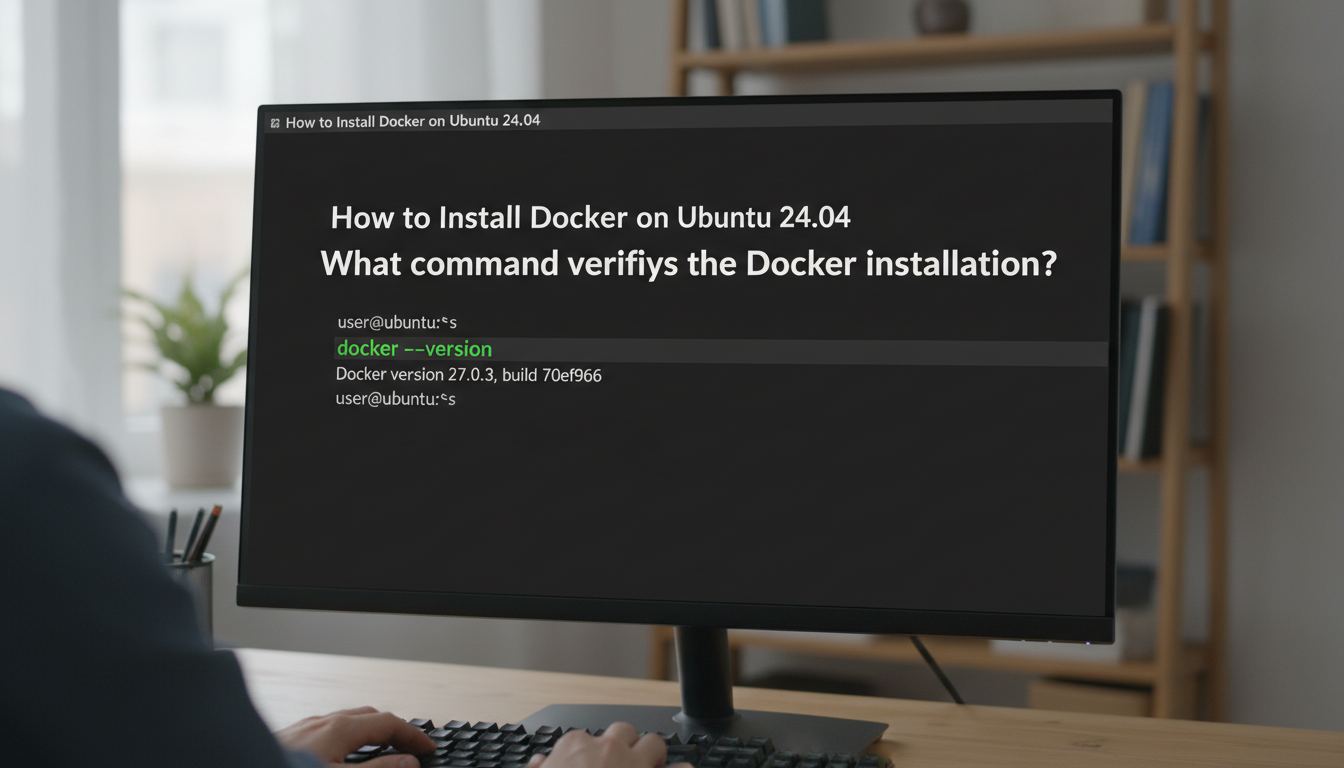
What command verifies the Docker installation?
To verify Docker is installed correctly, use sudo docker run hello-world. This downloads and runs a test container that prints a confirmation message. You can also check the Docker version with docker --version or docker version for detailed information. The sudo systemctl status docker command shows if the Docker service is active and running. If the hello-world container executes successfully, your installation is complete and functional on Ubuntu 24.04.
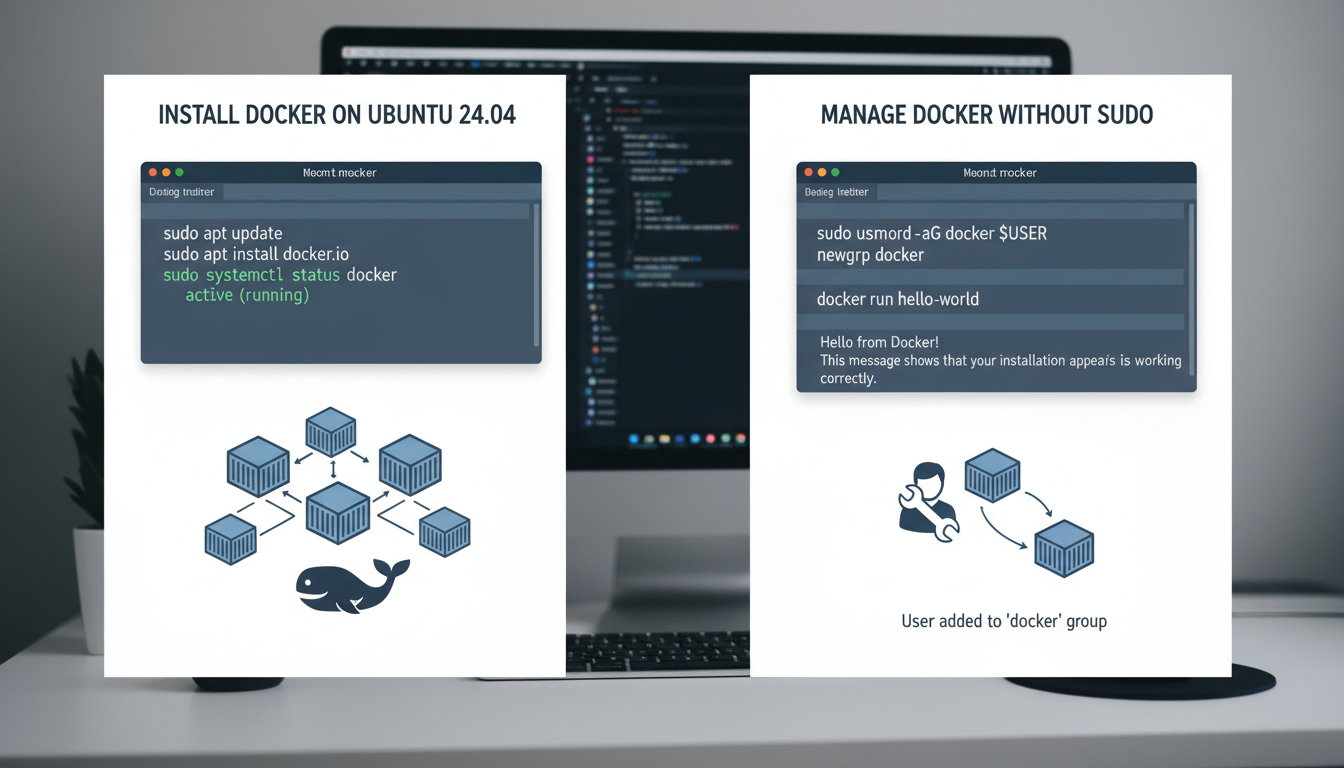
How to manage Docker without sudo?
Add your user to the docker group to run Docker commands without sudo. After installation, run: sudo usermod -aG docker $USER. Log out and log back in, or restart your session for changes to take effect. You can also use newgrp docker to activate the group immediately. Verify with docker run hello-world (no sudo). Be aware this grants equivalent root privileges to the user, so only add trusted accounts. This convenience is recommended for development environments.
Conclusion
Successfully completing this guide means you have now installed Docker on Ubuntu 24.04, a critical step for modern software development and deployment. The process began with updating system packages, then adding Docker’s official repository to ensure you receive the latest stable releases. Installing the essential packages—docker-ce, docker-ce-cli, and containerd.io—provided the core runtime and command-line tools. After verifying the installation runs smoothly with the hello-world container, you added your user to the docker group to avoid requiring sudo for every command, streamlining your workflow. By choosing to install Docker on Ubuntu 24.04 via its official repository, you gain reliable updates, strong security patches, and full compatibility with this LTS release. The key benefits include faster application delivery, consistent environments across development and production, and efficient resource utilization through containerization.
Now that Docker is operational, consider exploring next steps: enable Docker to start on boot with systemctl enable docker, pull and run popular images like Nginx or PostgreSQL, or learn Docker Compose to manage multi-container applications. Mastering container orchestration tools such as Kubernetes or Docker Swarm will further scale your deployments. Whether you are a developer, system administrator, or DevOps engineer, this foundation enables you to package applications with dependencies, isolate services, and automate pipelines. Docker’s ecosystem opens doors to microservices, CI/CD practices, and cloud-native development. By learning to install Docker on Ubuntu 24.04 today, you have taken a practical step toward modern, portable, and scalable infrastructure.
Related Articles

Stay ahead of the curve
Weekly tutorials, AI tools, and startup tech news in your inbox.